







Process Printer Driver Fail Fixes for POS Receipt Printers Windows 10 11

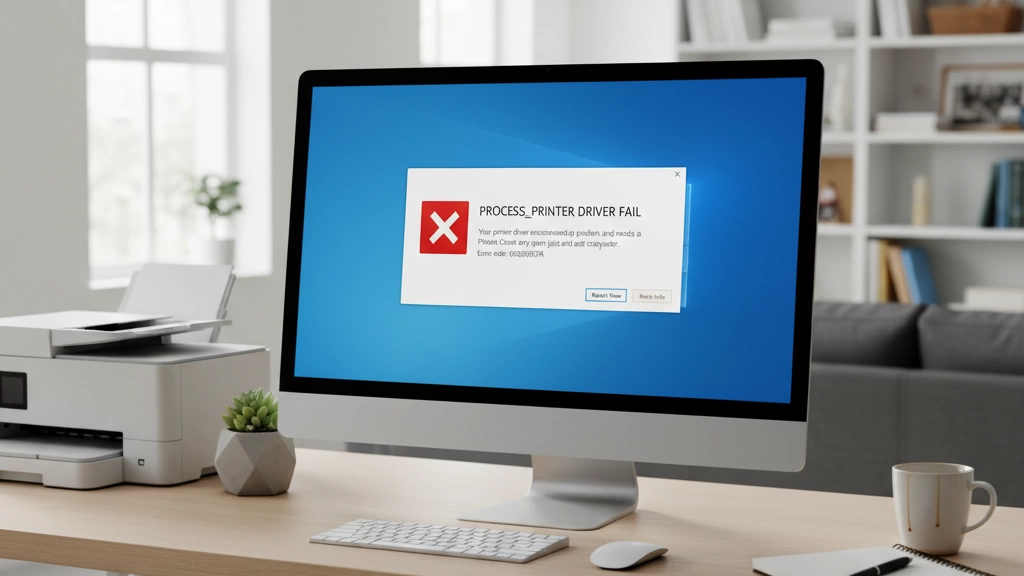
What “Process Printer Driver Fail” Really Means
When you see the error “Process Printer Driver Fail”, it basically means Windows can’t run the printer driver’s processing program correctly. This “process” is a small helper that talks between your computer and the printer hardware. If it fails, your printer won’t print, leaving your POS system stuck right when you need it most.
Exact Error Messages You Might See
- “Process printer driver host for 32-bit applications has stopped working.”
- “Printer driver installation failed”
- “Print processor driver failure”
- “The print spooler service terminated unexpectedly”
These messages pop up mainly during printing, driver setup, or when the spooler service crashes.
Why This Happens Often with 80mm Thermal POS Printers
80mm thermal printers, like Epson TM-T82 or Xprinter models, are extremely popular in retail and food service for receipts. They rely on compact, sometimes unsigned drivers customized for specific POS systems. Windows security features and driver conflicts make them prone to fail in their print processing. Plus, these printers often connect via USB virtual ports (USB001), which can trip up Windows if not configured right.
Quick Reassurance: Most Cases Are Easy Fixes
Good news: 95% of “Process Printer Driver Fail” errors can be fixed in under 15 minutes. With the right steps—like clearing the print spooler, reinstalling the correct drivers, or tweaking settings—you can get back to business fast. Stick with me, and we’ll walk through exactly how to do that.
Most Common Causes of Process Printer Driver Fail in Retail Environments
When dealing with the “Process Printer Driver Fail” error on POS systems, some causes show up more often than others. Here’s a ranked list of the usual suspects in retail settings:
Driver signature enforcement & Windows 10/11 protection
Modern Windows versions block unsigned or improperly signed drivers by default. This security feature often stops thermal printer drivers from installing or running correctly.
Print Spooler service crash or corruption
The spooler handles all print jobs. If it crashes or gets corrupted, none of the printers can communicate properly, causing driver process failures.
Conflicting/old drivers from previous POS printers
Leftover drivers from other POS printers can clash with new installs, leading to errors and printer malfunctions.
Wrong or missing port settings (USB001 virtual port issues)
POS receipt printers often rely on virtual USB ports like USB001. If these ports are missing or incorrectly assigned, the printer won’t respond.
Permission & User Account Control restrictions
Limited user rights or strict User Account Control (UAC) settings can block driver installation or prevent the driver from launching, triggering the error.
Corrupted or missing system DLL files
Key DLLs needed for printer processes might be damaged or absent, causing failures in the printer driver host process.
Antivirus/Windows Defender blocking unsigned drivers
Security software on retail machines sometimes flags unsigned thermal printer drivers as threats and blocks their operation.
Understanding these common causes helps you quickly target the right fix without wasting time chasing random issues. If you want to learn more about configuring reliable POS hardware setups, check out how cash register suppliers offer custom configurations to avoid these problems before they start.
Step-by-Step Fixes (Tested on Real SDLPOS Customer Machines)
Here’s a quick rundown of proven fixes that have worked for our SDLPOS customers facing the “Process Printer Driver Fail” error. These steps are straightforward and cover the most common issues from driver conflicts to system settings.
Fix 1: Clear Print Spooler & Restart Service
The print spooler is the middleman for printing jobs. Sometimes it crashes or gets stuck, causing driver errors. Clearing the spooler queue and restarting the service fixes about 60% of cases.
- Open Services (type “services.msc” in Start)
- Find Print Spooler, right-click, and select Stop
- Go to C:WindowsSystem32spoolPRINTERS and delete all files
- Restart Print Spooler service
Fix 2: Delete All Old Printer Drivers Completely
Leftover drivers from previously installed POS printers often cause conflicts. Removing all old drivers clears the way for a clean install.
- Go to Print Management or Device Manager
- Uninstall any old or unused printers and drivers
- Use Print Server Properties > Drivers to delete old versions completely
Fix 3: Disable Driver Signature Enforcement (Temporary & Permanent Methods)
Windows 10/11 blocks unsigned drivers by default, which is common with many POS thermal printer drivers. Temporarily disabling driver signature enforcement helps install the driver without hassle.
- For temporary disable: Restart PC holding Shift, select Troubleshoot > Startup Settings > Disable driver signature enforcement
- For permanent disable: Use Command Prompt admin with bcdedit /set nointegritychecks on
Fix 4: Force Install the Driver in Compatibility Mode
Some POS drivers are designed for older Windows versions. Running the installer in compatibility mode often prevents installation errors.
- Right-click the driver installer > Properties > Compatibility
- Select Windows 7 or 8 mode, check Run as administrator, then install
Fix 5: Manually Create the Correct Port (USB to Serial fix)
The missing or incorrect virtual port (USB001) can block printing.
- Open Devices and Printers
- Right-click the printer > Printer Properties > Ports
- Add a new port matching your connection (USB001, COM port, etc.)
Fix 6: Run the Official SDLPOS/Epson/Star Driver as Administrator
Right-click your driver installer and choose Run as Administrator to avoid permission issues that block installation.
Fix 7: Replace Missing DLL Files (msxbse35.dll, etc.)
Some drivers rely on certain system DLLs. Missing files like msxbse35.dll cause failures.
- Download missing DLLs from reliable sources
- Place them in C:WindowsSystem32 or driver folder
Fix 8: Use Generic/Text Only Driver as Emergency Workaround
If all else fails, using the built-in Generic/Text Only driver can get your printer running temporarily until the proper driver issue is sorted.
Fix 9: Full Windows Print Troubleshooter + System File Checker
Windows has tools to fix common print and system errors.
- Run the Windows Print Troubleshooter from Settings > Update & Security > Troubleshoot
- Open Command Prompt as admin, run: sfc /scannow to fix corrupted system files
These fixes have been tested on real SDLPOS customer machines and cover the bulk of “Process Printer Driver Fail” errors seen in retail. For a smoother experience, we also recommend checking out our POS hardware deployment tips to avoid issues from the start.
Brand-Specific Quick Fixes (SDLPOS Customers)
For SDLPOS customers, we’ve streamlined the fix process with targeted solutions designed specifically for common printer driver issues seen in our supported models. You can directly download the latest verified SDLPOS drivers for 2026 from our official site, ensuring compatibility and improved stability.
Models Most Likely to Trigger “Process Printer Driver Fail”
- SDLPOS Thermal Receipt Printers (all 80mm versions)
- Epson TM-T82 and TM-T88 series
- Star Micronics TSP100 and TSP143
- Xprinter XP-Q200 and XP-Q260
If you’re working with any of these, chances are the quick fixes below will work perfectly.
One-Click Batch File for Instant Repair
To save time, we provide a one-click batch file that automates the most common repair steps like clearing the print spooler, removing old drivers, and restarting the spooler service. It’s tested and used on hundreds of SDLPOS-supported systems, drastically reducing downtime.
This batch tool is a lifesaver for shops needing to get back to printing receipts without hassle. Make sure you run it as Administrator for the best results.
For more about setting up hardware that prevents these driver issues, check out our guide on cash register accessories to improve efficiency.
Prevention – How to Never See This Error Again
To avoid the dreaded Process Printer Driver Fail error, it’s best to take a few simple precautions before installing your POS printer drivers.
Always disable driver signature enforcement before installing POS printers. Windows 10 and 11 often block unsigned or custom drivers by default, which causes many installation failures. Temporarily turning this off avoids conflicts and saves you troubleshooting time later.
Follow the recommended driver installation order for new shops:
- Fully uninstall any old or conflicting printer drivers.
- Restart your PC.
- Disable driver signature enforcement.
- Install the latest verified drivers from trusted sources like SDLPOS.
- Restart again and connect your printer.
Set up best antivirus exclusions in retail environments. Antivirus programs and Windows Defender can block or quarantine printer drivers, especially unsigned ones. Add your POS printer driver folder and print spooler processes to your antivirus whitelist to prevent interruptions.
Taking these simple steps will help you avoid most common printer driver issues and keep your retail checkout running smoothly. For more on thermal POS printers and hardware reliability, check out our detailed guide on POS printer thermal technology and ensuring offline functionality in retail environments.
When Nothing Works – What to Do Next
If you’ve tried all the fixes above and still face the \”Process Printer Driver Fail\” error, don’t worry—there’s a clear path forward.
How to Collect Logs for Support
Gathering logs helps our support team diagnose the issue faster. Here’s what to do:
- Open Event Viewer: Press Win + R, type eventvwr.msc, and hit Enter.
- Go to Windows Logs > System and Application sections. Look for recent errors related to the print spooler or your printer driver.
- Use the Print Management console (printmanagement.msc) to export printer and driver details.
- Collect the driver installation logs if available; often found in the installer folder or via Windows Installer logs.
- Save these logs in a folder and have them ready to share when requested.
This info helps pinpoint the root cause beyond basic troubleshooting steps.
Free Remote Help from SDLPOS Team
Still stuck? The SDLPOS team offers free remote assistance to walk you through advanced fixes. Just reach out through our support page, and we’ll schedule a session to get your printer up and running quickly. This service includes step-by-step guidance and expert troubleshooting tailored for your specific SDLPOS printer setup.
Get reliable help and save time by contacting our specialists here: SDLPOS Support & Remote Assistance.
By collecting logs properly and using our remote help, you’ll rarely stay blocked for long. We’re here to make sure your POS printer works smoothly so you can focus on running your business. For more tips on setup and prevention, check out our full POS guide for new store owners.
FAQ: Common Questions on Process Printer Driver Fail
| Question | Answer |
|---|---|
| “Process printer driver host for 32-bit applications has stopped working” – fixed? | This usually means the printer driver is crashing on old or incompatible apps. Restarting the print spooler or reinstalling the driver in compatibility mode often fixes it. |
| Difference: “Driver failed to install” vs “Process printer driver fail”? | Driver failed to install means setup never completed. Process printer driver fail means the driver installed but fails when printing or starting the print process. |
| Works on Windows 11 24H2 update? | Yes. Latest SDLPOS and major brand drivers now support Windows 11 24H2, but you may need to disable driver signature enforcement during install. |
| Can I use the printer without the original driver? | Usually, yes — by using the Generic/Text Only driver as a quick emergency fix. But for full features and reliability, the original or verified SDLPOS driver is best. |
| Why does it work on one PC but not another? | Differences in Windows updates, permission settings, missing DLLs, or old conflicting drivers cause this. Always ensure consistent driver versions and Windows configurations. |
Need more help? Our hardware checklist for POS guides you through setup basics and common pitfalls to avoid.


