







How to Fix Screen Backlight Failure on POS and Cash Register Displays

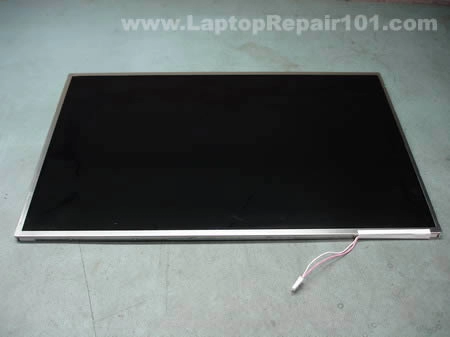
Signs of Backlight Failure in Your POS Display
If your POS terminal black screen turns on but shows no visible image, backlight failure is often the culprit. Here are the most common signs that the backlight is not working on your cash register display:
- Completely dark screen but system powers on: The device runs normally, but the screen stays black—this usually points to a backlight issue rather than a total display failure.
- Faint image visible when shining a light on the screen: Using a flashlight to illuminate the screen reveals a weak or ghost image. This “flashlight test display” confirms the LCD is working, but the backlight is not.
- Flickering or dimming over time: If your screen brightness inconsistently changes or gets dimmer, it could be a failing LED backlight or inverter board in older CCFL systems.
- Uneven brightness or dark patches: Patches or areas with dimmer light often indicate partial LED backlight replacement is needed or damaged backlight strips.
Recognizing these signs early helps you troubleshoot POS hardware issues effectively and avoid unexpected downtime at your checkout counter.
Common Causes of Backlight Failure in Cash Registers and POS Screens
Backlight failure in POS terminals and cash register displays can happen for several reasons. One common cause is a faulty inverter board, especially in older systems using CCFL backlighting. These inverters convert power to light the screen, and when they fail, the backlight goes out.
In modern setups, burned-out LED strips or bulbs are often responsible. Unlike CCFLs, LED backlights have their own lifespan, and worn-out LEDs mean the screen won’t light properly.
Loose or damaged cables and connections also frequently cause backlight issues, especially from regular wear and tear in busy retail environments. Worn-out flex cables or connectors can interrupt power flow to the display.
Sometimes, a blown fuse on the motherboard or power board interrupts the backlight, cutting off electricity to the LEDs or inverter. This is common when power surges or overheating occur.
Speaking of power, unstable power supply or overheating—common in high-traffic retail stores with constant use—can damage the backlight components over time.
Finally, physical damage like drops, pressure, or exposure to harsh environmental factors can break backlight parts or connections, causing dim or completely dark POS screens.
Understanding these causes helps you diagnose backlight problems faster and decide if a simple fix or professional repair is needed. For longer-lasting hardware, consider investing in top-quality POS systems and accessories, such as those recommended by SDLPOS hardware integration.
Quick Diagnostic Tests for Backlight Failure (No Tools Needed)
If your POS terminal screen goes dark, start with these quick checks before digging deeper. First, try the flashlight test: shine a bright light directly onto the screen in a dark room. If you see a faint image, it means the backlight isn’t working but the LCD itself still displays. This is a classic sign of backlight failure.
Next, if your system supports it, connect the POS to an external monitor. This helps rule out problems with the main system or graphics hardware rather than the screen backlight.
Also, power cycle the POS device—turn it off, unplug it, wait about 60 seconds, then restart. While rebooting, check if brightness settings might have been accidentally dimmed.
Finally, take a quick look at all visible cables and connections. Loose or damaged cables are common culprits behind backlight issues, especially in busy retail environments where hardware gets moved often.
These tests require no special tools and help decide if you can fix the problem yourself or need professional help. For more on keeping your POS reliable, explore tips on cost-effective POS hardware.
Step-by-Step Troubleshooting and Fixes for Screen Backlight Failure
If you’re facing a screen backlight failure on your POS terminal, here’s a simple, practical way to troubleshoot and fix common issues:
Basic Reset: Start by unplugging your POS system from power. Wait for about 60 seconds to let any residual power drain. Then, plug it back in and restart. This often resolves minor glitches causing the backlight not working on your POS screen.
Check Internal Connections: Power off and unplug the device before opening it. Carefully open the casing to inspect cables connecting the display to the motherboard or inverter board (in CCFL systems). Loose or disconnected cables are a common cause of faint images or dark screens. Reseat these connections firmly but gently. Always follow safety precautions to avoid electric shock or damaging components.
Test Power Supply Stability: Use a multimeter if you have one, or seek professional help to confirm that the voltage going to the display panel is steady and within the recommended range. Unstable power supply or a failing power board can cause flickering, dimming, or complete backlight failure.
Following these steps can often bring your POS screen backlight back to normal without extra costs. If you want more insights on buying hardware that lasts longer and prevents common display issues, check out our article on the benefits of modern cash register systems.
DIY Repair Options for Common Backlight Problems
If your POS screen backlight is failing, here are some DIY fixes you can try before calling a pro. These cover common issues like inverter board failure, LED backlight replacement, and blown fuses.
| Problem | DIY Fix | Tools Needed | Safety Tips |
|---|---|---|---|
| Inverter Board Failure | Replace inverter board (for CCFL systems) | Screwdrivers, multimeter | Disconnect power, avoid touching high-voltage parts |
| LED Backlight Strips | Swap out faulty LED strips | Screwdrivers, anti-static wrist strap | Power off device, handle strips gently to avoid damage |
| Blown Fuse on Power Board | Replace or solder blown fuse | Soldering iron, screwdriver | Only if experienced; disconnect power fully |
Step-by-Step Tips
- Replacing inverter board: Remove back cover, locate the inverter, disconnect cables carefully, and install a new board.
- Swapping LED strips: Open the screen housing carefully, unplug the old strips, and fit new ones with correct orientation.
- Fixing blown fuses: Identify the blown fuse using a multimeter and replace with an exact match, soldering if needed.
Essential Tools and Safety
- Screwdrivers (Phillips and flat-head)
- Multimeter for electrical tests
- Anti-static precautions (use wrist straps to protect components)
- Soldering iron (only for those confident with electronics repair)
Always disconnect power before opening your POS terminal. Avoid working near high-voltage parts, especially inside CCFL-backlit systems, as they can carry dangerous charge even when unplugged.
Following these DIY fixes can save you time and money on POS terminal black screen issues, but if you feel unsure, it’s safer to seek professional help. For more info on POS hardware and troubleshooting, check out our guide on POS terminals.
When DIY Isn’t Enough: Professional Repair or Replacement
Sometimes, fixing a backlight failure on your POS display goes beyond basic troubleshooting. Here’s when it’s best to call a professional:
Signs to call a technician:
- Persistent black screen despite resets and tests
- Board-level damage or burnt components inside the display
- Complex issues with the inverter board or LED backlight strips you can’t access safely
- Multiple hardware faults or underlying power supply problems
Repair vs. Replacement: Cost Comparison
| Option | Pros | Cons | Typical Cost Range |
|---|---|---|---|
| Professional Repair | Saves money short term | May be costly if parts fail again | $80 – $200+ depending on issue |
| New Display Unit | Long-term reliability, warranty | Higher upfront cost | $150 – $400+ |
| Upgrade to Modern SDLPOS | Latest tech, reliable LED backlight | Initial cost | Varies, but worth investment |
Why Upgrade to SDLPOS Systems?
Modern SDLPOS displays come with durable LED backlights, cutting-edge hardware, and better power efficiency than old CCFL systems. They’re built to handle the hustle of busy retail spaces without frequent backlight failure. Plus, choosing trusted brands means fewer surprises and longer-lasting performance.
For a clearer picture of the benefits, check out how modern cash registers with updated hardware improve reliability and reduce downtime. Switching from repair to upgrade often saves time, hassle, and money in the long run.
Explore our full range of POS hardware for high-security retail environments to ensure your setup stays bright and operational without backlight issues.
Prevention Tips for POS Screen Backlight Issues
Keeping your POS screen backlight in good shape means fewer headaches and longer device life. Here’s how you can prevent backlight failure:
| Prevention Tip | What to Do |
|---|---|
| Regular Cleaning | Dust off screens and vents to avoid overheating and dirt buildup. |
| Stable Power Supply | Use surge protectors and ensure reliable power to prevent voltage spikes that damage backlights. |
| Avoid Extreme Temperatures | Keep POS units away from direct sunlight, heaters, or cold drafts to prevent stress on display components. |
| Handle Carefully | Prevent physical damage by avoiding drops or pressure on the screen surface. |
| Choose Reliable Hardware | Invest in high-quality POS displays from trusted suppliers like SDLPOS for stronger, more durable backlight performance. |
Following these simple steps helps prevent common backlight issues like flickering, dimming, or complete failure. For robust and long-lasting POS hardware suited to busy retail environments, check out the range of reliable solutions offered by SDLPOS.


