







Cash Register POS Sound Troubleshooting Guide for Clear Audio

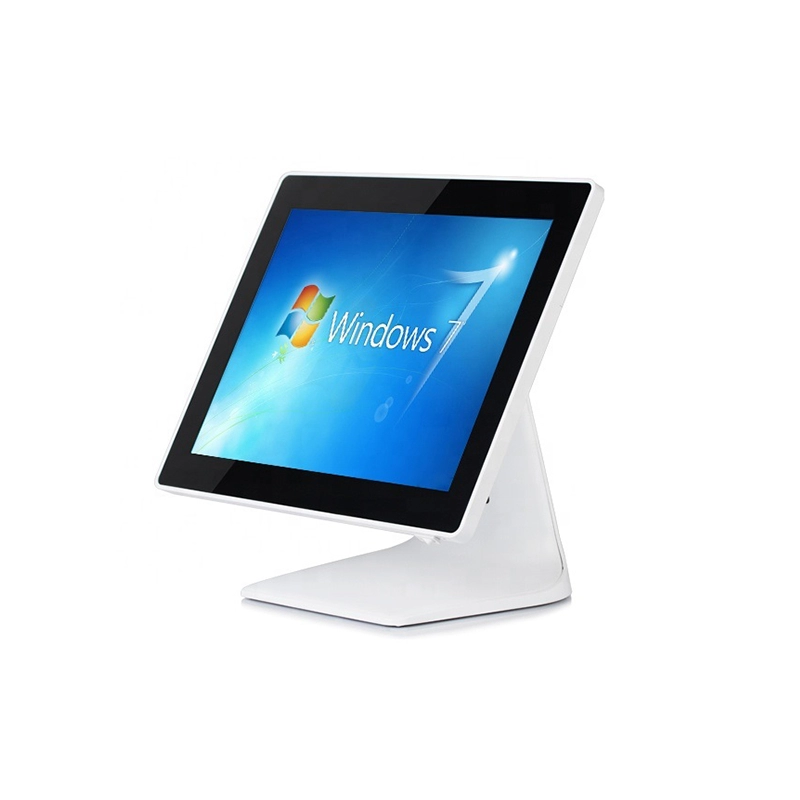
If your cash register POS isn’t making any sound or the usual beeps are missing, you’re not alone—and this can seriously disrupt your workflow. Whether it’s silent POS audio output, distorted alerts, or no confirmation tones during transactions, these issues can lead to costly mistakes in busy retail environments. Don’t worry—most sound output troubleshooting steps are quick and straightforward, helping you get back on track fast. In this post, you’ll learn exactly how to diagnose and fix common cash register POS sound problems so your system provides the reliable audio feedback you need every day.
Preliminary Checks – Quick Fixes to Try First
If your cash register POS sound output isn’t working, don’t worry—start with these simple steps before diving deeper. Often, the issue is a quick fix you can handle yourself.
- Check system volume and mute settings: Make sure the volume on your POS terminal’s operating system is turned up and not muted. Also, verify sound settings within your POS software; sometimes notification sounds or beeps are disabled by default.
- Confirm speakers are powered and connected: Whether you use external speakers or built-in audio, ensure they’re plugged in securely and powered on. Loose cables or unplugged devices are common culprits of no sound.
- Restart your POS terminal and peripherals: A quick reboot of the POS device along with connected equipment like printers or scanners can reset audio functions and clear temporary glitches.
- Test audio outside the POS app: Play simple system sounds or any media (like a video or music) to see if audio works outside the POS software. This helps determine if the issue lies with your POS system or the overall device sound setup.
These quick preliminary steps often resolve common POS system beeping not working problems. If sound still isn’t coming through, continue with hardware and software troubleshooting to pinpoint the root cause. SDLPOS supports you in every step to keep your cash register audio issues minimal and your operation running smoothly.
Hardware-Related Causes and Solutions
If your cash register POS sound output is acting up, start by checking the physical connections. Inspect audio cables and ports carefully for any signs of damage or looseness—sometimes a simple unplug and replug fixes the issue. Dust or debris in audio jacks or built-in speakers can also block sound, so gently clean those areas if needed.
To narrow down the problem, try using alternate speakers or headphones. If sound works on other devices, you’ve isolated the issue to your original speakers or ports. For all-in-one POS terminals, don’t overlook the motherboard or sound card health, as hardware faults here can cause audio failure.
Also, consider the power supply. Fluctuations or insufficient power can interfere with proper sound output from your POS system. Ensuring stable power can prevent sound distortion or sudden audio drops.
For more on maintaining and upgrading your hardware, check out how POS hardware with customizable features can help improve overall system reliability.
Software and Driver Issues
If your cash register POS sound output isn’t working, software and driver problems are often the cause. Start by running the built-in audio troubleshooter—on Windows, right-click the sound icon in the taskbar and select Troubleshoot sound problems. This tool can quickly identify and fix common audio glitches.
Next, make sure your audio drivers are up to date. You can update or reinstall these drivers from the Device Manager or directly from the manufacturer’s website. Outdated or corrupted drivers are a frequent culprit behind POS speaker problems and distorted audio.
Also, check that the correct playback device is selected in your sound settings. Sometimes, the system defaults to the wrong audio output, especially if external speakers or headphones were recently connected. Disabling audio enhancements can help too, as some of these features may clash with the POS system’s sound.
Lastly, watch out for recent Windows updates that might interfere with your audio drivers. Updates occasionally cause compatibility issues that mute sounds or prevent POS notification sounds from working properly. Rolling back problematic updates or reinstalling drivers often restores normal audio function.
For smooth, reliable sound output in your POS terminal, keeping software and drivers in top shape is essential. For insights on upgrading your hardware along with software maintenance, check out how POS hardware upgrades can improve overall system performance.
POS Software-Specific Troubleshooting
When your cash register POS sound output isn’t working, start by checking the sound settings inside the POS software itself. Many systems have options to enable or disable beeps for item entry, payment confirmation, and error alerts. If these settings are off, you won’t hear any notification sounds.
For popular apps like Square or other custom POS software, look for common toggles that control audio feedback. Sometimes, a simple reset or reconfiguration of the POS software audio preferences can fix the problem, especially if recent updates or changes caused misconfigurations.
Also, be aware that third-party applications or antivirus programs running on your terminal might mute or block POS system beeping sounds. Temporarily disable these apps to see if they’re causing conflicts with your POS audio.
If you’re using hardware from specialized providers, consider checking out reliable accessories and hardware options designed to enhance your system’s performance and reduce sound issues, such as those available at SDLPOS’s cash register accessories.
Advanced Troubleshooting Steps for POS Sound Output
If basic fixes don’t restore your cash register POS sound output, it’s time to dig deeper with advanced troubleshooting. Start by booting your POS terminal in safe mode to check if software conflicts are causing the issue. Safe mode loads only essential drivers, so if sound works here, some app or driver may be interfering.
Next, update your POS system’s BIOS or firmware, especially for all-in-one or integrated POS units. Updated firmware can fix compatibility issues that impact audio hardware performance and reliability.
You can also test the audio hardware with diagnostic tools or boot the system using a live USB—such as a Linux distribution—to isolate the problem. If sound works outside Windows, then you can narrow down the cause to drivers or software.
Finally, don’t overlook checking event logs for audio-related errors. This can give precise clues about what’s going wrong in your POS system’s sound output. If you run Windows, use the Event Viewer to look for warnings or errors linked to audio services or drivers.
These advanced steps help tackle stubborn cash register audio issues before considering hardware replacement or professional support. For more detail on reliable hardware choices, visit our guide on POS standard hardware checklist, which covers key components that keep your system running smoothly.
When to Seek Professional Help for Cash Register POS Sound Output Troubleshooting
If your cash register POS sound output issues persist after trying all basic fixes, it might be time to get professional help. This could mean a faulty sound card, motherboard problems, or other hardware failures within your POS system.
Signs You Need Expert Assistance
| Issue | Possible Cause | Recommended Action |
|---|---|---|
| No sound after volume and driver checks | Faulty sound card or motherboard | Contact SDLPOS support or authorized repair |
| Distorted or faint audio | Hardware deterioration or power issues | Professional diagnostics and repair |
| Intermittent POS beeps or alerts | Internal hardware failure | Warranty service or hardware replacement |
Why Contact SDLPOS Support?
- Get model-specific troubleshooting tips tailored for your POS system.
- Access warranty service and repairs to avoid further damage.
- Benefit from expert advice on maintaining reliable audio performance.
Using trusted hardware suppliers like SDLPOS helps prevent recurring POS hardware sound failures with quality parts and professional backing. For more info on reliable systems and accessories, check out SDLPOS’s product guide for solutions built to avoid common audio issues in POS setups.
Taking early professional action can save time, reduce downtime, and keep your point of sale system delivering clear, consistent notification sounds.


