







POS Systems LAN Printer Setup Guide 2026 Step by Step Troubleshooting

Prerequisites – What You Need Before Starting
Before setting up your LAN receipt printer for your POS system, make sure you have everything ready. This will save you time and avoid common headaches during installation.
Compatible Printers
Choose a printer that works well on a LAN network and with your POS software. Popular models include:
- EPSON TM-T82III
- EPSON TM-T88VI
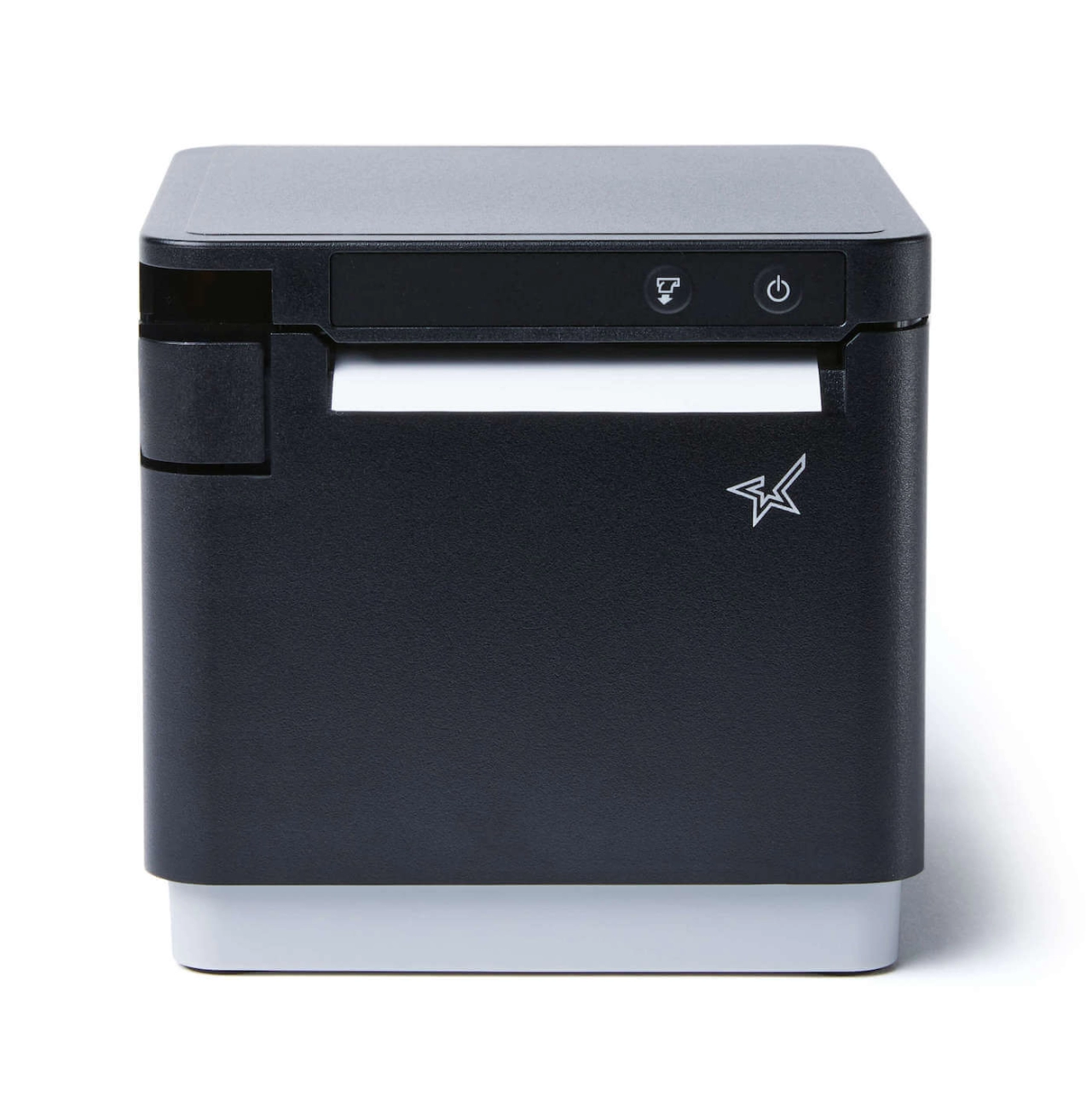
- Star TSP100III LAN
- Star TSP650II
These Ethernet thermal printers are proven reliable and support standard POS printer IP configurations.
Network Requirements
Your printer and POS terminals must be on the same subnet. Typically:
- Router with DHCP enabled, or
- Use static IP addresses within your local network range (e.g., 192.168.1.x)
Avoid mixing subnets like 192.168.0.x and 192.168.1.x to prevent connection issues.
Tools Needed
Get these ready before you start:
- A laptop or PC to configure the printer
- Ethernet cables for wired connections
- Printer driver pack and any POS software printer configuration tools
Having these on hand means smoother setup and quicker troubleshooting if needed.
Step-by-Step LAN Printer Setup (Universal Method)
Setting up a LAN receipt printer for your POS system is straightforward when you follow these steps:
Connect the Printer to Your Network
Plug your Ethernet cable from the receipt printer directly into your router or network switch. This ensures the printer is accessible on the local network.
Find the Printer’s Default IP Address
Most LAN printers have a button you press to print a network configuration slip showing the default IP address. Some models display the IP on a built-in screen.
Set Your PC to the Same Subnet
Temporarily change your computer’s IP address to match the printer’s subnet. For example, if the printer IP is 192.168.1.100, set your PC to something like 192.168.1.50 with subnet mask 255.255.255.0. This lets you reach the printer’s web settings page.
Access Printer Web Configuration
Open a web browser and enter the printer’s IP address (e.g., http://192.168.1.100). This brings up the printer’s configuration panel.
Assign a Static IP Outside the DHCP Range
To avoid IP conflicts, change the printer’s IP to a static address outside your router’s DHCP range, such as 192.168.1.200. This keeps the IP consistent and reliable.
Configure POS Software Printer Settings
In your POS software, enter the newly assigned printer IP and set the communication port to 9100 (the default Raw TCP printing port). This ensures smooth data transfer from the software to the printer.
Test Print from the POS
Finally, send a test print job from your POS system to confirm the printer is online and correctly set up.
Following this universal method works well with popular LAN printers like the EPSON TM-T88VI or Star TSP100III LAN, ensuring fast and accurate receipt printing over your network. For more details about compatible hardware and setup tips, check our POS buying guide for 24/7 use.
SDLPOS-Specific Setup for LAN Printers
Setting up your LAN printer with SDLPOS is straightforward once you know the right steps and IP settings.
Exact Menu Path in SDLPOS Software
To configure your printer in SDLPOS, navigate to:
Settings > Hardware > Printer Setup > LAN Printer
Here, you can add a new printer or edit an existing one by entering its IP address and port.
Recommended Static IP Range for SDLPOS Users
We suggest assigning static IPs within the 192.168.1.150 to 192.168.1.200 range to avoid conflicts with other devices. This lets SDLPOS consistently recognize your printer without IP changes disrupting printing.
One-Click Printer Detection in SDLPOS v5.8+
Starting with SDLPOS version 5.8+, there’s a handy one-click LAN printer detection tool in the same printer setup menu. It automatically scans your local network for compatible Epson or Star printers and adds them to your system — a real time-saver if you have multiple devices.
For more detailed hardware info, check out our restaurant POS hardware buying guide, which covers best printer models and configuration tips tailored for SDLPOS users.
Common Problems & How to Fix Them
Most issues with LAN printer setup happen here. Below are the top problems and quick fixes to get your POS system printing smoothly.
| Problem | Cause | Fix |
|---|---|---|
| Printer not detected / “No printer found” | Printer and PC not on the same subnet or wrong IP | Set your PC to the same subnet temporarily and verify printer’s IP. Check cables and power. |
| IP conflict or duplicate IP | Two devices using the same IP on the network | Assign a unique static IP outside your DHCP range to the printer (e.g., 192.168.1.200). |
| Different subnet issues (192.168.0.x vs 192.168.1.x) | Printer and POS on different network segments | Ensure both PC and printer are on the same subnet (e.g., both 192.168.1.x). |
| Port 9100 blocked by firewall/antivirus | Firewall or antivirus blocking printer traffic | Add an exception for port 9100 in all firewall and antivirus settings. |
| Slow printing or timeout | Network congestion or incorrect duplex/speed settings | Check Ethernet speed settings (100 Full Duplex preferred). Use wired LAN, not Wi-Fi. |
| Connection drops every few hours | Router dropping connection or inactivity timeout | Enable printer keep-alive in settings or use anti-drop/tcp keep-alive options. |
| Raw vs ESC/POS driver confusion | Using wrong driver for the printer model | Confirm you’re using the correct ESC/POS or raw TCP driver per your POS and printer. |
Quick Tips to Avoid Common Issues
- Always assign a static IP to your LAN receipt printer to avoid conflicts.
- Make sure your POS and printer are on the same subnet mask to communicate hassle-free.
- For SDLPOS users, check printer detection tools and recommended IP ranges for smoother setup.
- If you’re using an Ethernet thermal printer, keep port 9100 open — this is the standard raw TCP printing port.
If you’ve checked all the above and still face issues, it’s worth reviewing printer firewall rules and ensuring no conflicts with other connected peripherals. For deeper troubleshooting or tailored tips on POS printer IP configuration, visit our guide on affordable POS hardware for small businesses.
Advanced Network Optimization for Busy Stores
When your business runs multiple POS terminals and printers, optimizing your network setup becomes essential for smooth and fast printing. Here are some key tips:
Speed & Duplex Settings: Set your printer’s Ethernet port to 100 Mbps Full Duplex instead of Auto-Negotiate. This prevents speed mismatches and reduces printing delays or dropped connections common in busy environments.
Bonjour/mDNS vs Fixed IP: While Bonjour or mDNS helps devices find printers automatically, relying on fixed IP addresses is more stable for POS printer setups. Fixed IPs reduce connection drops and simplify troubleshooting.
Dedicated VLAN for POS Devices: Segment your POS hardware—like printers and terminals—on a separate VLAN. This isolates traffic, reduces network congestion, and enhances security so your printer won’t get interrupted by other network devices.
Power-over-Ethernet (PoE) Considerations: If your thermal LAN printer supports PoE, it can receive power and network over a single Ethernet cable. Using PoE switches reduces cable clutter and improves power reliability, especially in crowded store layouts.
For more insights on POS hardware management and optimizing your network environment, check out our multifunction POS hardware guide.
Real-World Examples & Screenshots
Case 1: Restaurant with 3 Terminals + 2 Kitchen Printers
A mid-sized restaurant used SDLPOS with three front-of-house terminals and two kitchen LAN receipt printers (EPSON TM-T82III and Star TSP100III LAN). Each printer was assigned a static IP outside the router’s DHCP range to avoid conflicts — for example, 192.168.1.210 for the bar printer and 192.168.1.220 for the kitchen printer. These printers were connected via Ethernet cables to the local switch on the same subnet, ensuring smooth, reliable printing. POS terminals were configured to send print jobs over port 9100 using the ESC/POS protocol, eliminating delays. The setup reduced order errors and improved kitchen speed due to stable LAN receipt printer setup and proper IP configuration.
Case 2: Retail Chain Using SDLPOS Across 5 Stores
A retail chain deployed SDLPOS across five locations, each with its own LAN printer network. The stores used Star TSP650II and EPSON TM-T88VI Ethernet thermal printers, configured with static IPs within a predefined range (192.168.100.x subnet) to help with standardization and easy maintenance. They utilized SDLPOS’s one-click printer detection tool introduced in version 5.8+ to quickly map printers in each store’s network. In busy retail environments, optimizing speed and duplex settings for each Ethernet thermal printer helped reduce print failures. Using a dedicated VLAN for POS devices in each store improved network security and performance, a critical factor in their multi-store setup. For more on hardware suited for high-traffic retail environments, see our detailed guide on POS hardware for high-traffic retail stores.
These real-world examples show how smart IP configuration, proper port usage, and using SDLPOS’s built-in tools can streamline LAN receipt printer setup and day-to-day operations in both restaurants and retail chains.
FAQ: LAN Printer Setup for POS Systems
Can I use Wi-Fi instead of LAN?
Yes, many POS receipt printers support Wi-Fi, but LAN (Ethernet) connections are generally more stable and faster—especially in busy stores. LAN reduces interference and connection drops, which can slow down order processing. If you want smooth operations, especially with SDLPOS setups, wired LAN is usually the better choice.
What port does a LAN receipt printer use?
Most LAN receipt printers use Port 9100 for printing. This is the standard raw TCP port for sending print jobs. Make sure this port isn’t blocked by your firewall or antivirus software to avoid connectivity issues.
How do I reset the printer IP?
To reset your LAN printer’s IP address, usually:
- Press the printer’s feed button for a few seconds to print a config page showing the current IP.
- Use the printer’s web interface by entering its IP into a browser on the same subnet.
- From there, you can set a new static IP or enable DHCP for automatic assignment.
Refer to your printer model’s manual for exact steps—models like EPSON TM-T82III or Star TSP100III have slightly different reset methods.
Why does my printer go offline after router restart?
If your printer loses connectivity after a router reboot, it’s often because it’s set to use a dynamic IP (DHCP). When the router restarts, it might assign a different IP to the printer, causing the POS software to lose connection. Setting a static IP outside the DHCP range prevents this issue. Also, check your router’s settings to reserve the printer’s IP or use a dedicated VLAN for POS devices to maintain stable connections.
Best LAN printers for SDLPOS in 2025?
Top recommended LAN receipt printers compatible with SDLPOS include:
- EPSON TM-T82III and TM-T88VI – reliable, fast, and widely supported.
- Star Micronics TSP100III LAN and TSP650II – known for easy setup and excellent network performance.
These printers offer smooth ESC/POS over LAN support and work perfectly with the latest SDLPOS versions. For optimized compatibility and detailed POS bundle options, check out our POS bundle for new shops.
Having clear answers to these common questions keeps your POS printer setup smooth and hassle-free. If you want to learn more about multi-terminal setups and efficient POS configurations, explore our guide on multistation POS systems.


