







Cash Register POS Printer Noise Troubleshooting Guide for Quiet Operation

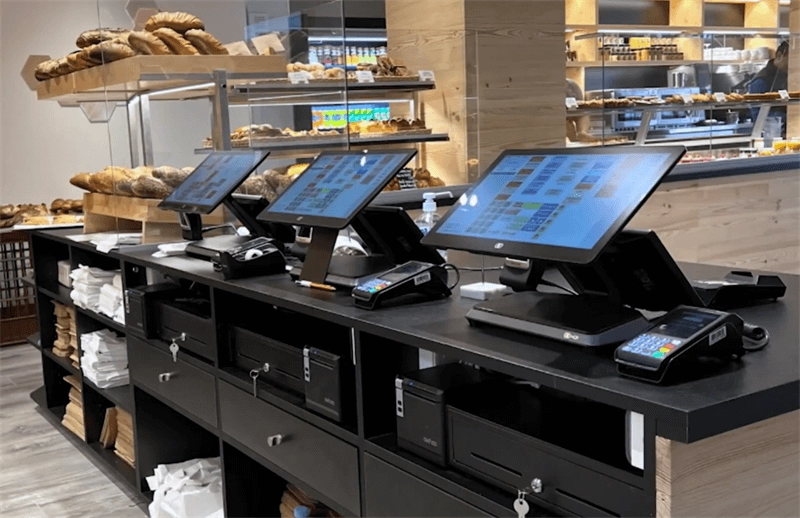
Understanding POS Printer Noise – What’s Normal vs. Problematic
When working with a cash register POS printer, it’s important to recognize which noises are normal and which signal a problem. Normal sounds include brief beeps during startup or paper feeding, along with a quiet thermal printing hum as the printer operates smoothly. These noises indicate that the printer is functioning correctly.
On the other hand, problematic noises require immediate attention. Continuous beeping usually signals error indicators like paper jams or open covers. Grinding or rattling sounds often point to mechanical issues such as worn gears or loose parts. Loud buzzing can mean overloaded motors or strain within the machine. Ignoring these noises can disrupt business operations and may lead to costly hardware damage.
Understanding these distinctions helps you maintain a quiet thermal printer environment, preventing downtime and ensuring your POS system runs efficiently.
Common Causes of POS Printer Noise
If your cash register POS printer is making noise, it usually points to a few typical issues that are easy to spot and fix.
Beeping errors often happen because of paper jams, an open printer cover, low paper levels, or cutter problems. These beeps are designed to alert you instantly to problems that need attention.
Rattling or grinding sounds usually signal mechanical troubles like loose covers, a misaligned paper roll, worn gears or bearings, or debris stuck inside. These noises can get worse if not addressed quickly, potentially damaging the printer.
Buzzing or clicking noises might come from high print speed or density settings, improper paper loading, or motor strain. Sometimes the motor works too hard because of the wrong paper tension or poor loading technique.
Other causes include faulty printer drivers, an overheating thermal printhead, or connection issues with the cash drawer. These can disrupt normal functioning and add to the noise.
Understanding these causes helps in quick troubleshooting and avoiding long-term damage. For detailed guidance on compatible hardware and troubleshooting tips, check out SDLPOS’s resources on how to choose cash register hardware for your business.
Step-by-Step Troubleshooting Guide for Cash Register POS Printer Noise
If your POS printer is making unusual noises, follow these simple steps to identify and fix the problem:
Basic Checks
- Power cycle the printer: Turn it off, wait 30 seconds, then power it back on. This often resets minor glitches causing noise.
- Secure all connections: Check USB cables, power cords, and cash drawer connections are firmly plugged in. Loose connections can cause buzzing or clicking sounds.
Inspect and Clean
- Open the printer cover and carefully remove the paper roll.
- Clean the printhead and rollers using a lint-free cloth dipped in isopropyl alcohol. Avoid abrasives that can damage the thermal printhead.
- Remove any debris or dust that could cause grinding or rattling noises.
Paper Loading Fixes
- Use the correct thermal paper recommended for your model.
- Load the roll with the shiny side facing up to ensure proper heat transfer.
- Avoid loose rolls—make sure the paper rolls smoothly without tension or slack.
Adjust Printer Settings
- If noise continues, reduce print speed and density through the printer driver or utility software. High-speed printing can strain the motor, causing buzzing.
- Reset DIP switches if your model uses hardware settings to control print density or speed.
Error-Specific Solutions
- Close the printer cover completely, since an open cover often triggers continuous beeping.
- Clear paper jams immediately to stop error beeps.
- If your printer supports it, silence alert beeps in settings to reduce distracting noise during busy hours.
Advanced Checks
- Inspect for loose parts inside the printer that might rattle during operation.
- Lubricate gears gently with silicone-based grease to smooth mechanical movements and reduce grinding sounds.
- Run a self-test print (usually triggered by pressing and holding a button on startup) to help diagnose any lingering issues.
Performing this troubleshooting routine regularly not only cuts down on thermal receipt printer noise but also extends your POS hardware’s lifespan. For insights into modern cash register systems that work seamlessly with these printers and reduce noisy disruptions, explore features of the latest retail hardware technology here.
Preventive Maintenance Tips
Keeping your cash register POS printer running quietly means staying on top of preventive maintenance. Here are some simple yet effective tips to reduce POS printer noise and avoid bigger issues:
Regular Cleaning: Aim to clean the thermal receipt printer every 3-6 months or more often if you use it heavily. Remove dust, debris, and paper scraps from the printhead and rollers using isopropyl alcohol and a soft cloth. This prevents grinding sounds and keeps printing smooth.
Proper Paper Handling: Always use the recommended thermal paper and load it correctly—shiny side up and well-aligned. Store paper rolls in a cool, dry place to avoid humidity-related jams and noisy feeding problems.
Firmware and Driver Updates: Keep your printer’s firmware and drivers up to date. Manufacturers often release updates that improve print quality and reduce error beeps or buzzing noises.
Control Environment: Place your POS printer away from direct sunlight, dust, and extreme temperatures. Environmental factors can cause overheating or hardware strain, leading to loud buzzing or rattling sounds.
Following these simple steps helps ensure quieter performance, longer printer life, and smoother business operations. For more tips and detailed hardware info, check out SDLPOS’s POS hardware for convenience stores.
When to Upgrade or Seek Help
If your cash register POS printer noise won’t go away despite troubleshooting, it might be time to consider an upgrade. Persistent beeping, grinding sounds, or frequent paper jams usually signal worn-out parts or an outdated model struggling to keep up. Using an old or noisy thermal receipt printer can hurt your business’s efficiency and customer experience.
Upgrading to a quiet, high-performance thermal printer from SDLPOS can make a big difference. These models are designed with noise-dampening features to reduce annoying sounds while boosting reliability. Plus, they’re made for smooth, fast printing to keep your operations running without interruptions.
If you’re unsure whether your printer needs replacement or repair, professional support is your best bet. Contact SDLPOS for expert diagnostics, maintenance advice, or warranty service to get your POS hardware back on track. For more on choosing the right system and hardware, check out the comprehensive guide on the components of a modern POS system.


