







How to Troubleshoot POS Touchscreen Issues Fast

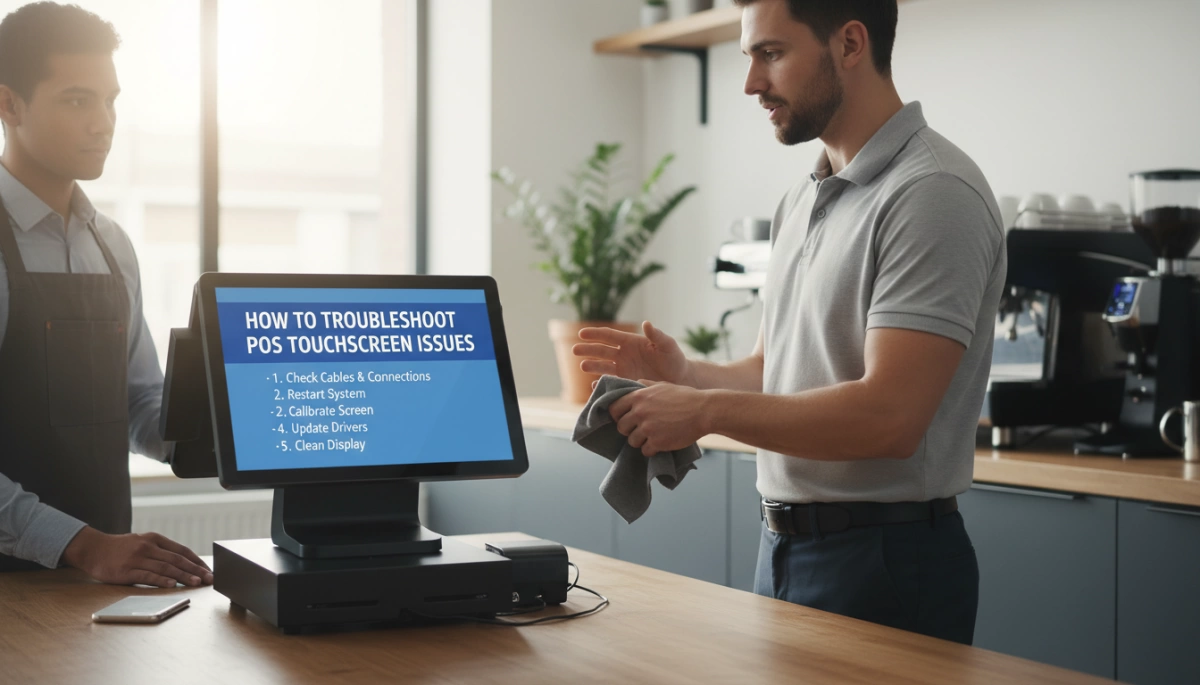
If your POS touchscreen suddenly stops working in the middle of a rush, everything grinds to a halt—lines grow, staff get stressed, and mistakes multiply fast.
The good news?
Most POS touchscreen issues—like an unresponsive POS screen, ghost touches, or inaccurate touch input—can be fixed in a few minutes with simple, practical steps. You don’t need to be an IT expert, and you don’t have to call support every time your point of sale screen freezes.
In this guide, I’ll walk you through exactly how to troubleshoot POS touchscreen issues the way a technician would:
from quick checks (like cleaning the POS touchscreen properly) to deeper fixes (like touchscreen calibration, driver updates, and hardware checks)—all tailored for real-world retail and hospitality environments.
If you want to fix an unresponsive POS screen, resolve POS touch delays, and keep your system running smoothly with reliable hardware from providers like SDLPOS, you’re in the right place.
Common POS Touchscreen Problems
If your POS touchscreen is acting up, you feel it right away: slower lines, frustrated staff, and lost sales. I’ll walk you through the most common POS touchscreen problems so you can quickly spot what’s going wrong and decide your next move.
Unresponsive or Frozen POS Touchscreen
This is the classic POS touchscreen not responding situation:
- You tap, swipe, or press — nothing happens.
- The point of sale screen looks frozen, or only some areas respond.
- Buttons work with a mouse, but not with touch.
This usually points to a software crash, driver issue, or a touch panel that’s locked up, not necessarily a dead screen.
Inaccurate or Drifting Touch Input
Here, the POS screen responds, but not where you touch:
- You tap “Pay” and it selects a different button.
- Touches near the edges are especially off.
- The touch point slowly “drifts” over time.
This is a classic inaccurate POS touch input or touch POS calibration issue, often fixed with proper touchscreen calibration on POS systems.
Ghost Touches and Phantom Inputs
Ghost touches (or phantom POS screen inputs) look like this:
- The POS terminal taps itself with no one touching it.
- Random buttons trigger, orders add, or screens jump around.
- It’s worse when the screen is wet, dirty, or under bright light.
This usually means interference, moisture, a failing capacitive POS touchscreen, or damaged touch sensors.
Slow or Delayed POS Touch Response
If the POS screen lags or feels delayed:
- Touches register 1–3 seconds late.
- Swipes stutter or freeze for a moment.
- Everything feels “heavy” or slow.
This can be POS software overload, low system resources, or POS touch display issues caused by outdated drivers or firmware.
Screen Shows Image but Touch Input Doesn’t Work
This one is easy to miss:
- The POS display works but touch does not.
- You still see menus, products, and receipts.
- A mouse or keyboard might still work fine.
In this case, the LCD is okay, but the touch layer, driver, or USB connection is likely the problem. It could be a simple POS hardware troubleshooting issue (cable, port, or driver), or a sign the touch panel itself needs repair or replacement.
When I build and deploy POS systems under the SDLPOS brand, these are the exact issues I design around: reliable touch panels, stable drivers, and hardware that can survive real-world retail and restaurant conditions. Understanding which problem you’re seeing is the first step to fixing your POS system touch problems fast.
Basic Troubleshooting: Quick Fixes for POS Touchscreen Issues
When a POS touchscreen is not responding, I always start with the simple fixes first. These quick checks solve most POS system touch problems without needing a technician.
Restart the POS terminal
A lot of “frozen” or unresponsive POS screens are just software glitches.
- Restart the POS terminal fully (not just the POS app).
- Wait 30–60 seconds before turning it back on.
- Check if the POS touchscreen lag, ghost touches, or delays are gone.
Do this regularly as part of routine maintenance to keep your POS running smoothly.
Clean the POS touchscreen safely
Dirt, grease, and sanitizer residue can cause inaccurate POS touch input and ghost taps.
- Turn off the POS terminal before cleaning.
- Use a microfiber cloth slightly damp with a screen-safe cleaner or 70% isopropyl alcohol.
- Avoid spraying liquid directly on the POS touchscreen.
- Never use abrasive pads, paper towels, or strong chemicals.
For busy retail and restaurant setups, I set a daily cleaning routine for all POS touch displays.
Remove screen protectors or obstructions
If the POS touchscreen is not responding or feels less sensitive:
- Remove thick or damaged screen protectors.
- Clear menus, pens, receipts, and stands touching the edges of the screen.
- Make sure staff are not using nails, cards, or tools instead of fingers/stylus on capacitive POS touchscreens.
Anything resting on the glass can cause ghost touches or blocked input.
Check USB and power cables
Loose or damaged cables are a common cause of POS display works but touch does not.
- Confirm the power cable is firmly plugged into the POS terminal and outlet.
- Check USB or touch interface cables for kinks, cuts, or loose connectors.
- If you’re using an external POS touch monitor, reseat both power and USB cables on both ends.
I always keep spare, good-quality cables in-store—cheap cables cause intermittent touch failures.
Test different USB ports or power sources
If the POS touchscreen still isn’t responding:
- Plug the touchscreen USB into another USB port on the POS terminal.
- Avoid USB hubs; connect directly to the main POS unit where possible.
- Try another power outlet or power strip if the current one looks overloaded or unstable.
If you’re planning new hardware or a 24/7 setup, I’d recommend checking a solid POS buying guide for continuous use so your terminals and touchscreens are built for constant uptime.
Intermediate Troubleshooting Steps for POS Touch Issues
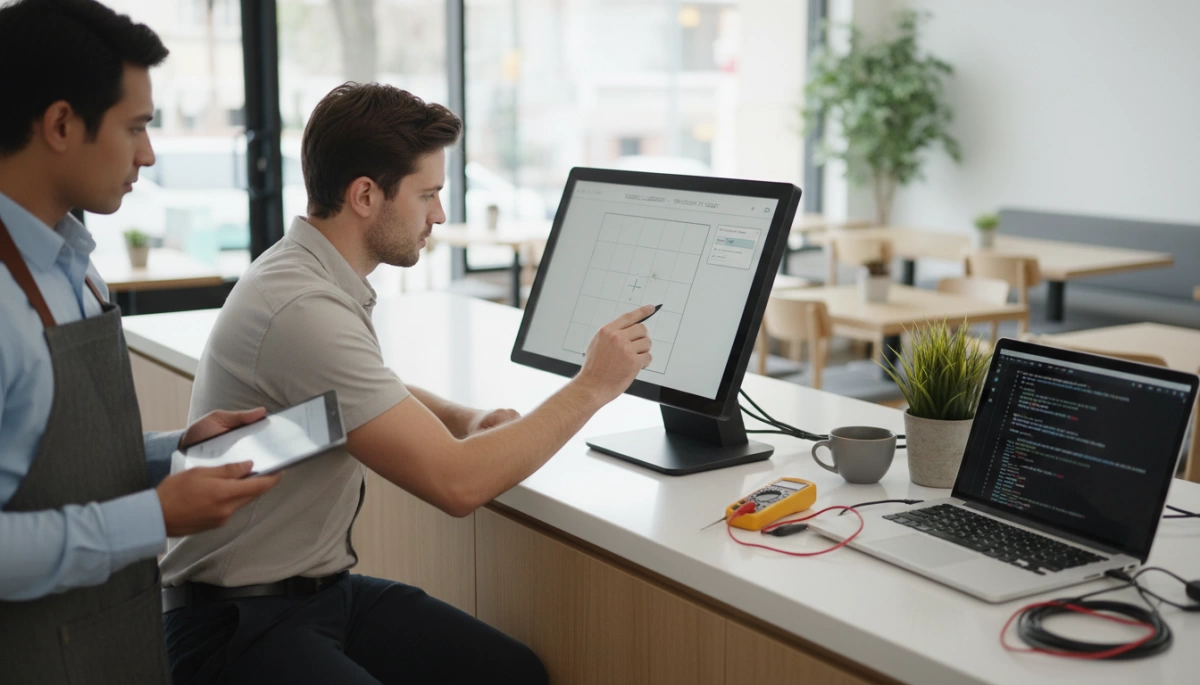
When the quick fixes don’t solve your POS touchscreen problems, I move to these intermediate checks. They usually fix POS touchscreen not responding, inaccurate POS touch input, and ghost touch POS system issues without needing hardware repair.
Calibrate the POS Touchscreen
If touches feel “off” or drift toward the edges, you likely need touchscreen calibration on your POS.
- In Windows, open Control Panel → Tablet PC Settings or Pen and Touch (varies by version).
- Choose the Display that’s your POS screen, then click Calibrate.
- Follow the on‑screen points carefully, tapping exactly where shown.
- Save and test by tapping buttons near the screen edges and corners.
Do this whenever you notice touchscreen edge calibration issues, or after moving or rotating the POS display.
Reinstall or Update POS Touchscreen Drivers in Windows
Driver issues are a common cause of POS touch input drift, screen lag, or touch not detected on POS.
- Open Device Manager and find HID-compliant touch screen under Human Interface Devices.
- Right‑click → Update driver to pull the latest from Windows or your POS vendor.
- If the problem started after an update, try Roll Back Driver instead.
- If touch fully fails, uninstall the device and restart the POS terminal so Windows reinstalls it.
Keeping POS drivers and Windows POS touch settings clean and current is key to stable performance.
Use Manufacturer Tools or SDLPOS Utilities
Most quality POS hardware comes with its own touchscreen diagnostics and calibration tools.
- Run the vendor’s calibration utility instead of relying only on Windows when possible.
- Use built‑in tests to check for ghost taps, dead zones, or touchscreen sensitivity issues.
- If you’re using our SDLPOS terminals, we provide dedicated utilities to fine‑tune capacitive POS touchscreen or resistive POS touchscreen panels for your store workflow.
If you’re still evaluating hardware, it’s worth understanding why reliable cash register hardware matters for retailers before you scale.
Check Heat, Dust, and Humidity Around the POS
Environment can quietly destroy touch accuracy and lifespan, especially in busy retail POS and restaurant POS setups.
- Heat: Keep POS terminals away from ovens, direct sunlight, and hot air vents.
- Dust & Grease: Use covers or shields where there’s flour, oil, or steam (kitchens, bakeries, fuel stations).
- Humidity: Avoid placing POS directly under AC vents that drip or near doors that bring in moisture.
Bad environments lead to POS screen lag and delay, random touchscreen ghost taps, and early hardware failure.
Avoid Strong Light, Magnets, and Interference
Some POS touch display issues are caused by interference, not the screen itself.
- Avoid intense direct sunlight or strong LED spotlights pointing at the display.
- Keep magnets, speakers, wireless chargers, and large power supplies away from the POS.
- Don’t stack other devices directly behind or under the POS terminal’s touch panel.
Cleaning up interference often stabilizes POS touch display issues without any hardware change.
If you manage multiple locations or are upgrading from older systems, it’s worth looking at modern types of point of sale systems and how integrated hardware simplifies day‑to‑day POS hardware troubleshooting: overview of POS system types.
Advanced Troubleshooting Steps for POS Touchscreen Problems
When basic fixes don’t solve your POS touchscreen problems, it’s time to go a bit deeper. These steps help you confirm if the issue is software, settings, or actual hardware failure.
Use a mouse or keyboard to test the POS system
First, find out if it’s only the touch that’s broken or the whole POS system:
- Plug in a USB mouse and keyboard to the POS terminal.
- Try navigating the POS software, opening menus, and processing a test transaction.
- If the mouse and keyboard work fine, your POS touchscreen not responding issue is likely driver, calibration, or hardware related—not a full system crash.
If nothing responds at all, you may be dealing with a wider POS hardware troubleshooting or OS issue, not just touch.
Update POS software, OS, and touchscreen firmware
Outdated software is a common reason for POS system touch problems, lag, and ghost touches:
- Update POS application: Make sure your POS app is on the latest stable version approved by your vendor.
- Update Windows or OS: Install pending security and driver updates outside of business hours.
- Update touchscreen firmware: Many capacitive POS touchscreen and resistive POS touchscreen panels have firmware tools from the manufacturer. Updating can fix touchscreen ghost taps, drift, and POS screen lag and delay.
For stores building a modern setup from scratch, I always recommend reviewing Windows-based POS hardware options and supplier best practices, like those described in this guide on Windows cash register suppliers for small businesses, before you standardise.
Roll back recent updates if touch stopped suddenly
If your POS touchscreen stopped working after a recent update:
- Note the date and time the problem started.
- In Windows, use:
- Driver rollback for the HID-compliant touch screen driver.
- System Restore to a restore point from before the issue.
- If you updated your POS software recently, temporarily revert to the previous stable version (if your vendor allows it).
This is especially useful when touch input not working but POS screen still shows image, which often points to a driver or firmware conflict—not a dead display.
Perform a safe factory reset after backup
If nothing works and the POS screen still misbehaves:
- Back up everything first:
- Sales data
- Inventory
- Custom layouts and POS settings
- Follow the vendor’s official steps for a factory reset or OS recovery.
- After reset, reinstall:
- POS software
- Touchscreen drivers
- Calibration tools (including any SDLPOS touchscreen support utilities, if you use them)
Only do this when you’re confident with basic IT steps or have guidance from your POS vendor.
Document errors and patterns before deeper fixes
Before you call support or book a POS touch screen repair service, collect details. This saves time and money:
- Photos or videos of the issue:
- Ghost touches
- Areas that never respond
- POS kiosk touch not working on edges, etc.
- Error messages on screen, Windows logs, or POS alerts.
- Pattern of failure:
- Only during peak hours?
- Only after the system has been on all day?
- Only on one POS touch display or on multiple terminals?
Good documentation helps your technician quickly decide if you need POS touch panel replacement, a simple calibration, or just a driver fix—and it keeps your retail POS screen problems and restaurant POS touch failure downtime as short as possible.
When to Call a POS Technician or Vendor Support
Signs the POS Touchscreen Hardware Is Failing
You should stop trying to fix it yourself and call a POS technician or your vendor when you see clear signs of hardware failure, such as:
- Touch not responding anywhere on the screen, even after restarts and calibration
- Random ghost touches or taps happening with no one near the POS
- Severe touch drift (you tap one place, it registers far away) that keeps coming back
- Touch only working on part of the display (for example, top half works, bottom half dead)
If you’re running a busy store or restaurant, don’t wait too long—persistent POS touchscreen problems usually get worse and can directly impact sales and customer flow.
Cracked Glass, Liquid Damage, and Visible Screen Defects
Call support immediately if you notice:
- Cracked or shattered glass on the POS touchscreen
- Liquid spills or moisture under the glass or around the bezel
- Dark spots, lines, or flickering sections on the display
- Burn marks, bulging, or strong smell from the POS terminal
These are almost always hardware issues and can’t be fixed with calibration or driver updates. In many cases, you’ll need a POS touch panel replacement or a full POS terminal repair.
Touchscreen Still Failing After Troubleshooting
If you’ve already tried the standard POS troubleshooting steps—like rebooting, cleaning, checking cables, updating Windows drivers, and calibrating the touchscreen—and:
- The POS system touch still isn’t responding, or
- The point of sale screen is frozen frequently, or
- Ghost touches and lag keep returning
then it’s time to escalate. At this point, continuing to reset and retry won’t solve it; you risk more downtime at the checkout or front counter.
When to Contact SDLPOS or Your POS Vendor for Repair
Reach out to SDLPOS or your POS vendor as soon as:
- Your POS display works but touch does not
- There’s physical damage (cracks, dents, liquid)
- You notice repeating failures on multiple terminals
- You’ve done all the basic and intermediate fixes with no improvement
If your setup includes older cash registers or mixed POS hardware, it can help to review overall system options and upgrades in resources like our cash register and POS overview so you don’t keep sinking money into failing devices.
What Info to Prepare Before Calling Technical Support
To speed up diagnosis and avoid back-and-forth, have this ready before you call or open a ticket:
- POS brand and model (terminal and touchscreen)
- Operating system (e.g., Windows 10/11, POS-ready version)
- POS software name and version
- Serial number of the device
- Exact touchscreen symptoms (unresponsive, ghost taps, drift, only corners not working, etc.)
- When the issue started and whether it followed a recent update, move, or cleaning
- Steps you’ve already tried (reboot, calibrate, driver update, different USB port, etc.)
- Photos or short video showing the POS touch failure or visible damage
The more detail you provide, the faster SDLPOS or your vendor can decide whether it’s a remote software fix, a touchscreen firmware update, or a hardware repair / replacement that’s needed.
Preventive Maintenance for POS Touchscreen Reliability
Keeping a POS touchscreen reliable isn’t luck – it’s routine. Here’s how I set up preventive maintenance so the screen stays responsive, accurate, and ready for rush hours.
Regular cleaning routine for POS touchscreens
Set a simple daily and weekly cleaning plan:
Daily (start or end of shift):
- Wipe the POS touchscreen with a soft microfiber cloth.
- Use a screen-safe cleaner (no ammonia, no alcohol sprays directly on the glass).
- Focus on high-touch areas: buttons, menus, login areas.
Weekly:
- Power off the POS terminal and do a deeper clean around the bezel, edges, and stand.
- Check for smudges, dust build-up, and sticky spots that can cause ghost touches.
This kind of routine is standard on high-traffic, modern POS hardware for global retailers, and it makes a big difference in touchscreen life.
Train staff on proper POS touch usage
Most POS touchscreen problems come from how people use them. Train your team to:
- Use fingertips, not nails, pens, or cards.
- Tap with normal pressure – no pounding or long presses unless needed.
- Avoid placing drinks, phones, or plates on or against the screen.
- Report slow response, ghost touches, or drift immediately instead of ignoring it.
A short training during onboarding protects your POS system and cuts down on repair calls.
Use quality POS hardware and accessories
Cheap hardware costs more in downtime. I always recommend:
- Commercial-grade capacitive or resistive POS touchscreens designed for retail and restaurant use.
- Certified power adapters, USB cables, and stands that don’t wobble or loosen easily.
- Proper screen protectors made for POS devices (not random tablet film).
Good POS hardware and accessories reduce touchscreen issues, from screen lag to random disconnects.
Keep POS systems updated and restart regularly
Software health is just as important as hardware:
- Turn on scheduled system updates for Windows, POS software, and drivers.
- Keep HID-compliant touch screen drivers and touchscreen firmware up to date.
- Restart POS terminals daily or at least several times a week to clear memory and minor glitches.
- Avoid installing unnecessary apps that slow the POS touch system.
This helps prevent POS screen lag, delayed touch response, and random freezes.
Control dust, temperature, and clutter around POS stations
Your environment directly impacts POS touchscreen performance:
- Keep the counter clean and decluttered – no piles of menus, flyers, or cables pushing on the screen.
- Reduce dust and grease in kitchen or fast-food setups with regular wiping and using proper hoods.
- Maintain a stable room temperature and avoid direct sun or strong heat on the POS display.
- Keep magnets, strong speakers, and power bricks away from the back and sides of the screen.
A clean, controlled POS station extends touchscreen life and cuts down on POS hardware troubleshooting in the long run.


