







Cómo usar la caja registradora Guía paso a paso para minoristas

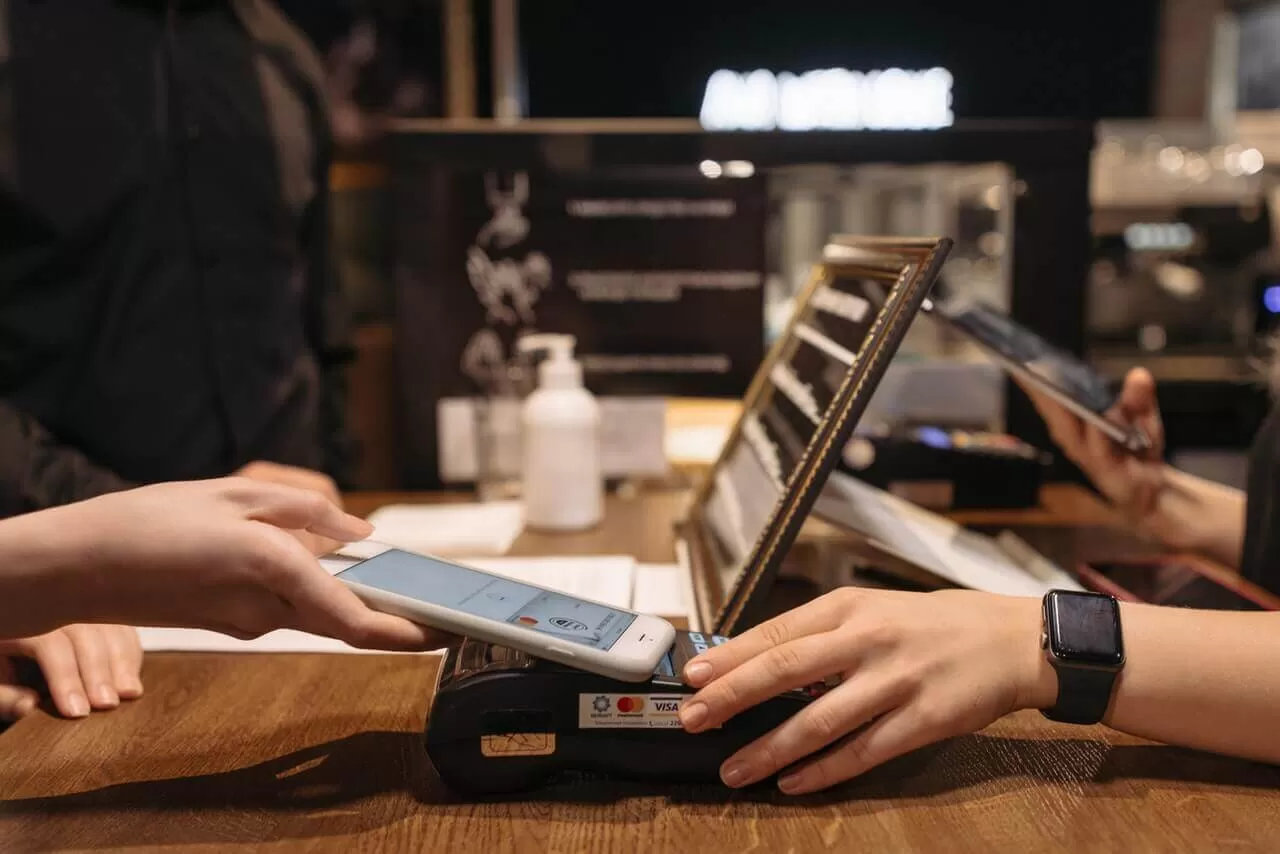
¿Eres nuevo en el uso de una caja registradora o buscas optimizar tu operaciones minoristas? Dominar el caja registradora es esencial para transacciones fluidas y clientes satisfechos.
Como proveedor confiable de hardware minorista, SDLPOS entiende los desafíos de comenzar. Por eso hemos creado esta guía para principiantes para guiarte paso a paso cómo usar una caja registradora como un profesional. Desde configurar tu máquina to procesar pagos y solucionar problemas, te ofrecemos consejos prácticos basados en experiencias reales.
Vamos a comenzar y hacer de operación de la caja registradora sea pan comido!
Conceptos básicos de caja registradora tipos componentes clave y familiaridad con modelos
Si eres nuevo en de operación de la caja registradora, es útil comenzar con lo básico. Las cajas registradoras vienen en diferentes formas, principalmente mecánicas, electrónicas, y modernas sistemas POS. Cada tipo cumple la misma función principal pero funciona de manera diferente y ofrece distintas características.
Tipos de cajas registradoras
- Cajas registradoras mecánicas son los modelos tradicionales que podrías ver en tiendas antiguas. Funcionan usando palancas y botones manuales para registrar ventas y almacenar efectivo.
- Cajas registradoras electrónicas digitalizan muchas funciones como introducir precios de artículos y imprimir recibos. Estos son más comunes en negocios pequeños a medianos hoy en día.
- sistemas POS (Punto de Venta) son sistemas avanzados basados en ordenador que combinan hardware y software. Procesan ventas, gestionan inventario y a menudo se integran con terminales de pago y bases de datos de clientes.
Componentes clave de una caja registradora estándar
Independientemente del tipo, la mayoría de las cajas registradoras comparten partes esenciales:
- Pantalla: Muestra los precios de los artículos, totales y detalles de la transacción ya sea en un panel LED simple o en una pantalla táctil a color.
- Teclado o pantalla táctil: Se usa para ingresar precios, introducir comandos o escanear códigos de barras.
- Cajón de efectivo: El compartimento seguro donde se almacenan billetes y monedas.
- Impresora de recibos: Imprime recibos de venta y registros de transacciones para los clientes.
Por qué importa conocer tu modelo específico
No todas las cajas registradoras funcionan igual. Familiarizarse con el modelo de tu caja registradora es crucial para una operación diaria fluida. Entender qué botones presionar, cómo cargar el efectivo correctamente y cómo solucionar problemas comunes con tu unidad específica significa que evitas errores costosos y tiempos de inactividad. Cuanto mejor conozcas tu máquina, más rápido y con mayor confianza manejarás las transacciones.
Invertir tiempo en aprender las funciones y controles de tu caja registradora te ahorrará dolores de cabeza más adelante y te ayudará a ofrecer un mejor servicio. Ya sea una caja registradora electrónica sencilla o un sistema POS completo, este conocimiento construye la base para todos tus procesos de manejo de efectivo y ventas.
Configurar tu caja registradora Preparación inicial y configuración

Preparar tu caja registradora para su uso diario es un proceso sencillo pero esencial. Una configuración adecuada garantiza un funcionamiento fluido y precisión en las transacciones de venta. Aquí tienes una guía sencilla para configurar tu caja registradora, incluyendo encenderla, ajustar configuraciones y cargar la caja de efectivo.
Encender y configuración básica
- Enciende la caja registradora conectándola a una toma de corriente y pulsando el botón de encendido. Algunos sistemas electrónicos y POS pueden tardar unos segundos en arrancar.
- Configura la fecha y la hora inmediatamente después de encenderse. La fecha y hora precisas son cruciales para los registros de transacciones y los informes de fin de día.
- Siga las indicaciones en pantalla o use el teclado para ingresar la fecha y hora actuales. Si su caja registradora tiene capacidades táctiles, esta configuración será aún más sencilla.
Cargando efectivo y monedas en la caja registradora
- Abra la caja manualmente o usando la tecla de comando registrada.
- Organice su caja registradora con billetes y monedas separados en compartimentos designados.
- Una configuración típica incluye:
- Billetes clasificados por denominaciones ($1, $5, $10, $20, etc.)
- Monedas divididas por tipo (centavos, níqueles, dimes, cuartos).
- Mantenga una cantidad adecuada de cada denominación para facilitar el cambio durante las transacciones.
- Asegure la caja registradora cerrándola firmemente después de cargarla.
Ingresando tasas de impuestos y configurando ajustes
- La mayoría de las cajas registradoras permiten programar tasas de impuestos locales y estatales para calcular automáticamente el impuesto sobre las ventas.
- Acceda al menú de configuración, generalmente mediante el teclado o la pantalla táctil, e ingrese el porcentaje de impuestos de su jurisdicción.
- A menudo puede establecer diferentes tasas de impuestos para varias categorías de artículos si su negocio lo requiere.
- Consulte su manual o la guía de configuración SDLPOS para instrucciones específicas sobre cómo programar sus tasas de impuestos y otras configuraciones.
Revisiones finales antes de la operación
- Ejecutar un transacción de prueba para verificar que la caja registradora se abra correctamente y los recibos se impriman de manera ordenada.
- Confirme que los precios ingresados se registren correctamente y que el impuesto sobre las ventas se calcule como se espera.
- Si su caja registradora admite escaneo de códigos de barras, pruebe el escáner para asegurarse de que lea los códigos de producto rápidamente.
Seguir estos pasos de configuración hará que su caja registradora sea confiable y fácil de usar todos los días. Una carga y configuración adecuadas reducen errores y aceleran el proceso de pago, beneficiando tanto a sus clientes como a su negocio.
Guía paso a paso para usar la caja registradora
Usar una caja registradora puede parecer sencillo, pero seguir un proceso claro ayuda a mantener las transacciones fluidas y precisas. Aquí tienes una explicación sencilla de cómo operar tu caja registradora de manera efectiva.
Encender y acceder
- Encienda la caja registradora presionando el botón designado o accionando el interruptor. Algunos modelos pueden tardar unos segundos en arrancar.
- Si su caja registradora requiere credenciales de usuario, inicie sesión usando su ID o contraseña asignados para rastrear las ventas por empleado y garantizar la seguridad.
Ingresar artículos y precios
- Puede registrar ventas ya sea ingresando manualmente los precios de los artículos en el teclado o mediante escaneo de códigos de barras usando un escáner conectado. La lectura de códigos de barras acelera el proceso de pago y reduce errores.
- Para entrada manual, verifique el precio antes de pulsar la tecla de total.
- Algunos registros avanzados de SDLPOS soportan ambos métodos fácilmente, por lo que puede alternar entre ellos según su variedad de productos. Aprenda más sobre las cajas registradoras SDLPOS.
Procesamiento de Tipos de Pago
Su caja registradora debe manejar múltiples formas de pago:
- Efectivo: Ingrese la cantidad recibida, y la caja calculará el cambio automáticamente. Coloque el efectivo y las monedas de forma segura en la caja.
- Tarjetas de crédito y débito: Pase o inserte la tarjeta a través del terminal de tarjetas o sistema POS adjunto. Siga las indicaciones en pantalla para completar la venta.
- Cheques: Ingrese manualmente los detalles del cheque si su sistema lo soporta. Recuerde verificar el cheque antes de completar la transacción.
Asegúrese de confirmar el monto y método de pago con el cliente antes de finalizar.
Emisión de Recibos y Manejo de Devoluciones
- Después del pago, la caja registradora imprimirá un recibo automáticamente. Siempre entregue este recibo a su cliente. Si la impresora se atasca o se queda sin papel, reemplace el rollo rápidamente.
- Para devoluciones o cambios, utilice el modo de devolución o siga las indicaciones en su caja para anular o reembolsar transacciones. Esto mantiene sus registros precisos y evita confusiones.
Cierre de caja y Reconciliación de efectivo
Al final de cada día:
- Realiza un conteo de efectivo y concilia la caja registradora contra las ventas del día reportadas por la caja.
- Utiliza la función de cierre de fin de día de tu caja registradora para generar informes de ventas. Este paso es crucial para seguir el rendimiento diario y detectar discrepancias temprano.
- Asegura la caja después de cerrar.
Siguiendo estos pasos, garantizas un funcionamiento preciso de la caja registradora, reduces errores y mejoras el servicio al cliente. Para un sistema de caja registradora fácil de usar, adaptado a pequeñas empresas, consulta las soluciones de SDLPOS diseñadas para fiabilidad y eficiencia. Explora sistemas de caja registradora aquí.
Consejos para una operación eficiente y sin errores de la caja registradora

Operar una caja registradora de manera fluida es clave para una excelente experiencia del cliente y un manejo preciso del efectivo. Aquí tienes algunos consejos sencillos para ayudarte a evitar errores comunes, manejar el efectivo de forma segura y solucionar problemas menores rápidamente.
Evita errores comunes en la caja registradora
- Verifica doble los precios y cantidades antes de finalizar cada venta para evitar cargos incorrectos.
- Utiliza escáneres de código de barras cuando sea posible para agilizar las transacciones y reducir errores al ingresar los precios de los artículos manualmente.
- Mantén tu caja registradora organizada—el desorden puede causar errores o retrasos.
- Cierra sesión o bloquea la caja registradora cada vez que te alejes para mantener las ventas seguras y prevenir uso no autorizado.
- Confirme cuidadosamente los métodos de pago, especialmente al procesar tarjetas de crédito o débito, para evitar transacciones rechazadas o fraudes.
Manipule las transacciones en efectivo de manera segura
- Cuente el efectivo frente al cliente antes y después de la venta para generar confianza.
- Separe el efectivo de los cheques y recibos de tarjeta de crédito en su caja registradora para mantener las cosas claras.
- Almacene los billetes grandes por separado para hacer cambio rápidamente.
- Reconcile regularmente la caja registradora durante y después de su turno para detectar discrepancias temprano.
- Utilice una cerradura segura para la caja registradora especialmente durante los momentos de mayor afluencia para prevenir robos.
Solución de problemas en la caja registradora
Si su caja presenta un problema, aquí le mostramos cómo manejar fallos menores por sí mismo:
Papel de recibo atascado
- Abra la tapa de la impresora de recibos.
- Retire suavemente el papel atascado y vuelva a cargar papel nuevo alineado correctamente.
- Cierre la tapa y pruebe a imprimir un recibo.
La caja registradora no se abre
- Verifique que la venta esté completada o que la caja registradora esté desbloqueada.
- Utilice la palanca manual de liberación del cajón (generalmente debajo o cerca del cajón).
- Reinicie la caja registradora si es necesario.
La impresora de recibos no imprime
- Verifique la colocación del rollo de papel y reemplácelo si está vacío.
- Asegúrese de que la tapa de la impresora esté cerrada de forma segura.
- Apague y encienda la máquina si el problema persiste.
El sistema se congela o se ralentiza
- Guarde todas las transacciones abiertas si es posible.
- Reinicie la caja registradora para solucionar problemas menores de software.
- Contacte con soporte si los bloqueos continúan.
Seguir estos pasos garantiza que su caja registradora funcione sin problemas y que sus transacciones sean precisas, manteniendo su negocio en marcha sin contratiempos.
Para soporte continuo y más consejos sobre su modelo específico de caja registradora, consulte siempre el manual de su producto o comuníquese con el servicio de atención al cliente de SDLPOS para asistencia rápida.
Cómo SDLPOS Apoya su negocio con hardware de caja registradora
Cuando se trata de de operación de la caja registradora, tener hardware confiable es esencial. SDLPOS ofrece cajas registradoras fáciles de usar diseñadas específicamente para pequeñas y medianas empresas en toda España. Su hardware combina la sencillez necesaria para transacciones rápidas diarias con funciones avanzadas que optimizan las ventas y el manejo de efectivo.
Características clave de las cajas registradoras SDLPOS
- Pantallas táctiles intuitivas: Fáciles de navegar, reduciendo el tiempo de capacitación para nuevos cajeros.
- Opciones múltiples para procesar pagos: Admite efectivo, tarjetas de crédito, débito y pagos móviles.
- Impresión rápida de recibos: Impresoras fiables que minimizan los atascos de papel y aceleran el proceso de pago.
- Cajones de efectivo seguros: Diseñados para mantener sus fondos seguros y organizados.
- Escáneres de código de barras integrados: Ayuda a registrar las ventas de forma rápida y precisa, aumentando la eficiencia.
Estas características se centran en un configuración fluida de la caja registradora y transacciones rápidas y sin errores, lo que ayuda a que su negocio funcione con confianza.
Consejos para el mantenimiento del hardware de su caja registradora SDLPOS
Para que su caja registradora siga funcionando sin problemas:
- Limpie el teclado y la pantalla con regularidad con un paño suave y seco.
- Mantenga el papel de recibo abastecido y utilice el tamaño correcto para evitar atascos.
- Evite derramar líquidos cerca del cajón de efectivo o los componentes electrónicos.
- Realice actualizaciones de software de rutina si su modelo lo admite, para mejorar la seguridad y el rendimiento.
- Revise cables y conexiones para detectar el desgaste y evitar paradas inesperadas.
Seguir estos pasos simples ayuda a prevenir problemas comunes, ahorrándole tiempo y dinero.
Contactar con SDLPOS para soporte o actualizaciones
Si encuentra algún problema o desea actualizar su caja registradora, SDLPOS ofrece un servicio al cliente confiable y soporte técnico adaptado a los minoristas en España.
- Visite el sitio web oficial de SDLPOS para manuales de usuario y guías de resolución de problemas.
- Contacte con su línea de soporte al cliente para respuestas rápidas a preguntas sobre hardware.
- Explore opciones para actualizaciones de hardware para mantener su sistema actualizado con las tecnologías de pago modernas.
- Muchos distribuidores de SDLPOS ofrecen servicio e instalación local para ayudarle a configurarlo sin problemas.
Con SDLPOS apoyando sus necesidades de hardware, puede centrarse más en su negocio y menos en los problemas en la caja. Sus cajas registradoras están diseñadas para manejar los desafíos cotidianos del comercio minorista, siendo fáciles de usar y mantener.
Preguntas Frecuentes Sobre la Guía de Operación de la Caja Registradora
Aquí encontrará respuestas a algunas preguntas comunes al usar su caja registradora, cubriendo configuración de impuestos, reembolsos y resolución de problemas.
¿Puedo programar las tasas de impuestos yo mismo?
Sí, la mayoría de las cajas registradoras, ya sean electrónicas o sistemas POS, te permiten programar las tasas de impuestos por ti mismo. Esto es esencial para cumplir con las leyes fiscales locales y estatales.
- Accede al menú de configuración en tu caja registradora o sistema POS.
- Busca la opción de configuración de impuestos—a veces etiquetada como “Configuración de Impuestos” o “Tasas de Impuestos”.”
- Ingresa las tasas de impuestos apropiadas para tu ubicación. Normalmente puedes configurar varias tasas si es necesario (por ejemplo, impuestos estatales y locales).
- Guarda tus configuraciones y realiza una prueba haciendo una venta para confirmar que se aplica el impuesto correcto.
Si no estás seguro o tu modelo es diferente, consulta el manual de usuario o contacta con el soporte de SDLPOS para una guía paso a paso.
¿Cómo puedo reembolsar una transacción?
Reembolsar una transacción es sencillo, pero varía ligeramente según el tipo de caja registradora.
- Localiza la venta original usando el número de recibo o el historial de transacciones.
- Utiliza el función de reembolso o anulación en tu caja registradora o sistema POS.
- Ingresa la cantidad a reembolsar y selecciona el método de pago (efectivo, tarjeta, etc.).
- Emite un recibo de reembolso al cliente para sus registros.
- Asegúrese de Registrar los reembolsos correctamente para una conciliación precisa al final del día.
Si estás gestionando devoluciones o cambios, muchos sistemas te permiten registrar los artículos devueltos y luego procesar un reembolso o cambio como una venta nueva.
What to Do If the Cash Register Freezes or Malfunctions
Cash registers can sometimes freeze or malfunction. Here’s what you can do:
- Reinicia la caja registradora apagándolo y encendiéndolo; a menudo esto resuelve fallos menores.
- Verifica Atascos de papel en la impresora de recibos y eliminarlos cuidadosamente.
- Asegúrate de que el cajón de efectivo esté correctamente conectado y desbloqueado.
- Si la pantalla o el teclado dejan de responder, intenta un reinicio suave si tu modelo lo soporta.
- Mantén tu manual de usuario a mano para pasos específicos de resolución de problemas relacionados con códigos de error o comportamientos inusuales.
Para problemas persistentes o fallos de hardware, contacta con el soporte técnico de SDLPOS. Ofrecen asistencia rápida y actualizaciones de hardware para mantener tu caja registradora funcionando sin problemas.
Al abordar estas preocupaciones comunes, puedes gestionar con confianza tu caja registradora y mantener tus ventas sin contratiempos. Para cualquier problema único o configuración avanzada, confía en el soporte de SDLPOS—están listos para ayudarte.



Pensamientos sobre “How to Use the Cash Register Step by Step Guide for Retailers”