







POS USB Printer Troubleshooting Guide for Fast Reliable Fixes

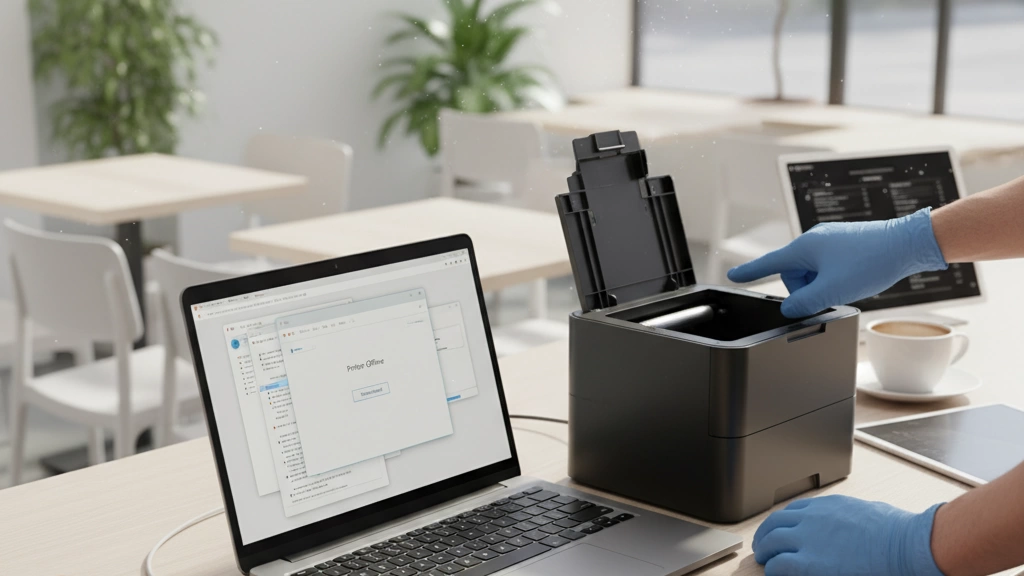
Comprendiendo los conceptos básicos de las impresoras USB en configuraciones POS
Si gestionas un comercio minorista o de hostelería concurrido, sabes lo importante que es tu impresora POS. Las impresoras USB, especialmente los modelos térmicos de recibos como el Epson TM-T82 o la serie Star TSP100, son opciones populares gracias a su velocidad de impresión y fiabilidad. Pero las conexiones USB se comportan de manera bastante diferente en comparación con Bluetooth o Ethernet, y entender estas diferencias puede ahorrarte muchos dolores de cabeza.
USB vs. Bluetooth y Ethernet en POS
- USB es una conexión directa, cableada. Esto significa menos problemas de interferencias y generalmente una transferencia de datos más rápida que Bluetooth. Es plug-and-play en la mayoría de los sistemas, lo que hace que la configuración sea rápida y sencilla.
- Bluetooth ofrece comodidad inalámbrica pero puede sufrir interferencias, problemas de emparejamiento y límites de distancia—menos ideal para entornos de alto volumen y ritmo rápido.
- Ethernet proporciona una conexión en red robusta, ideal para configuraciones con múltiples estaciones, pero requiere configuración de red e infraestructura, lo que añade complejidad.
En resumen, USB encuentra un equilibrio — fiable y rápido con una configuración mínima, perfecto para estaciones POS compactas que utilizan impresoras térmicas como el Epson TM-T82 o la serie Star TSP100.
Por qué fallan las conexiones USB en entornos minoristas
Incluso con sus beneficios, USB no es infalible. Aquí tienes las razones más comunes por las que las impresoras USB pueden comportarse mal en un entorno minorista concurrido:
- Problemas de consumo de energía: Muchas impresoras térmicas necesitan una fuente de alimentación constante (generalmente 24V DC). Si tu fuente de USB o de energía no puede suministrar energía de manera consistente, las impresoras pueden reiniciarse durante la impresión o no arrancar.
- Conflictos en los puertos: Usar concentradores USB, o puertos compartidos con otros dispositivos, puede confundir al sistema y causar desconexiones o impresiones intermitentes.
- Incompatibilidades de software: Los controladores que no son completamente compatibles con tu sistema POS o las actualizaciones del sistema operativo pueden provocar errores de detección o fallos en la impresión.
Lista rápida de compatibilidad para usuarios de SDLPOS
Antes de conectar esa impresora USB, verifica que tu modelo de caja registradora soporte la impresión USB sin problemas. Aquí tienes una tabla rápida para comparar las conexiones USB con Bluetooth y Ethernet en cuanto a compatibilidad y fiabilidad:
| Tipo de conexión | Facilidad de Configuración | Fiabilidad | Necesidades de energía | Mejor Caso de Uso |
|---|---|---|---|---|
| USB | Plug-and-play | Alto | Requiere energía estable | Impresión rápida en una sola estación |
| Bluetooth | Configuración inalámbrica | Moderado | Dependiente de la batería | Flexibilidad móvil/de registro |
| Ethernet | Configuración de red | Muy alto | Alimentado por red | Entornos de múltiples estaciones |
Consejo profesional para usuarios de SDLPOS
Asegurar alineación del firmware entre su impresora USB y la caja registradora SDLPOS. Las incompatibilidades de firmware, incluso las pequeñas, pueden causar errores inesperados o retrasos en la impresión. Actualice regularmente el firmware de la impresora y del punto de venta para mantener una comunicación perfecta.
Understanding these basics saves time and stress later on. Knowing why USB connections sometimes fail and how your specific equipment interacts allows you to troubleshoot faster and keep lines moving. Next, we\’ll dive into the first steps of diagnosing your USB printer before trying fixes.
Diagnóstico inicial: Antes de comenzar con las soluciones
Before jumping into complex troubleshooting for your POS USB printer, it\’s important to run some simple initial checks to pinpoint the issue quickly.
Paso 1: Inspección visual y de energía
- Busque luces de error LED: La mayoría de las impresoras térmicas USB, como la Epson TM-T82 o la serie Star TSP100, tienen luces indicadoras que parpadean o cambian de color para mostrar problemas. Una luz roja parpadeante generalmente indica un atasco de papel o una falla de hardware.
- Verifique si hay atascos de papel: Abra la impresora e inspeccione el rollo térmico. Asegúrese de que el papel esté cargado correctamente y no esté atascado o rasgado.
- Asegure que los rollos térmicos estén correctamente colocados: El papel suelto o mal alineado puede detener la impresión o causar errores.
Paso 2: Realizar una impresión de autoevaluación
Realizar una impresión de autoevaluación ayuda a confirmar si el hardware de la impresora funciona de manera independiente de su sistema POS:
- Para Epson TM-T82: Mantenga presionado el botón de alimentación mientras enciende la impresora hasta que imprima una página de prueba.
- Para Star TSP100: Presione y mantenga presionado el botón de alimentación de papel durante 5 segundos con la impresora encendida para activar la autoevaluación.
Si la autoevaluación se imprime con éxito, es probable que el hardware de la impresora y la cabeza térmica estén bien.
Paso 3: Verificación de reconocimiento del dispositivo
- En Windows: Abra el Administrador de dispositivos (busque “Administrador de dispositivos” en el menú Inicio), luego busque en “Impresoras” o “Controladoras de bus serie universal” para confirmar la detección. Si la impresora aparece con un icono de advertencia, es posible que falten o estén corruptos los controladores.
- En POS Android: Acceda a la configuración USB o a la aplicación POS proporcionada por el fabricante para ver si la impresora es reconocida a través del adaptador OTG (On-The-Go).
Diagrama de flujo para solución rápida de problemas
Cuando la impresora no sea detectada, siga estos puntos de control en sus decisiones:
- ¿El cable USB está conectado de forma segura?
- No → Reconecte firmemente
- Sí → Continúe
- ¿La impresora muestra alguna error en los LED?
- Sí → Verifique atascos de papel o problema de hardware
- No → Continúe
- ¿El Administrador de dispositivos o la configuración USB muestran la impresora?
- No → Prueba con un puerto USB o cable diferente
- Sí → Verifica los controladores y la configuración del software POS
Usar este árbol de decisiones rápido facilita identificar dónde se encuentra la falla antes de profundizar. Para más información sobre la compatibilidad y configuraciones del hardware POS, explora nuestro guía de sistemas de caja registradora para principiantes.
Problemas comunes de conexión USB y soluciones específicas
A. Fallos en el cable y en el puerto
Síntomas: Impresiones intermitentes, errores repentinos de ”pérdida de conexión” o trabajos de impresión que se detienen inesperadamente.
Soluciones:
- Cambia tu cable USB por uno conocido en buen estado, de USB-A a USB-B, para descartar daños en el cable.
- Prueba diferentes puertos USB en tu terminal POS; evita los concentradores USB, ya que suelen causar problemas de conexión.
- Vuelve a conectar el cable asegurándote de que esté bien sujeto en ambos extremos, impresora y caja registradora.
Consejo avanzado: Revisa el cable USB en busca de pines doblados o desgaste; estos son culpables comunes en entornos minoristas concurridos. Para mejores resultados, usa cables blindados SDLPOS diseñados específicamente para tiendas con mucho tráfico para mejorar la durabilidad y reducir interferencias.
B. Inestabilidades en la fuente de alimentación
Síntomas: La impresora se apaga durante la impresión o no se inicia en absoluto.
Soluciones:
- Confirma que el adaptador de corriente coincida con el requisito de voltaje de la impresora, generalmente alrededor de 24V DC.
- Reinicia la impresora: desconecta, espera 10 segundos y vuelve a conectar.
- Intenta alimentar la impresora desde una toma de corriente dedicada para evitar caídas de tensión.
Truco para minoristas: En configuraciones de múltiples estaciones POS, aisla las fuentes de alimentación de las impresoras. Una sobrecarga en una estación puede interrumpir los registros que ejecutan el software SDLPOS en otra. Mantener cada dispositivo en su propio circuito ayuda a mantener la estabilidad.
C. Conflictos de controladores y software
Síntomas: Su impresora USB aparece como “fuera de línea” en el software POS, aunque el sistema la detecta.
Soluciones:
- Descargue los controladores USB más recientes directamente desde los sitios oficiales de Epson o Star Micronics para garantizar la compatibilidad.
- Utilice el Administrador de dispositivos para desinstalar y luego reinstalar los controladores de la impresora para eliminar archivos corruptos.
- Ejecute el solucionador de problemas de impresoras de Windows para correcciones automáticas.
Consejo específico para POS: Si usa el software SDLPOS junto con plataformas como Square o Lightspeed, verifique doblemente la configuración de asignación de la impresora. Ajustar el puerto USB asignado en el software asegura que los trabajos de impresión se enruten correctamente. (Puede encontrar guías detalladas de configuración y capturas de pantalla en los recursos de soporte de SDLPOS.)
D. Congelamientos de cola de impresión y spooler
Síntomas: Los trabajos de impresión se quedan atascados, causando retrasos o recibos faltantes.
Soluciones:
- Abra Servicios (services.msc), busque “Cola de impresión” y reinícielo para eliminar trabajos atascados.
- Cancela manualmente todas las tareas de impresión pendientes para actualizar la cola.
- Cambia tu impresora a modo fuera de línea y vuelve a ponerla en línea para restablecer su estado.
Prevención: En entornos minoristas concurridos, programe un reinicio semanal del spooler y un vaciado de la cola. Esta limpieza regular evita acumulaciones que pueden ralentizar tu impresora POS y interrumpir el flujo de caja.
Para una visión general sólida del hardware POS compatible, incluyendo impresoras térmicas USB confiables, consulta nuestra guía detallada sobre Proveedores de cajas registradoras con Windows para pequeñas empresas.
Solución avanzada de problemas para problemas persistentes
Cuando los problemas con la impresora USB no se resuelven, es momento de profundizar con estas soluciones avanzadas.
Errores de asignación de puertos
A veces, tu sistema POS asigna puertos USB incorrectos, causando que los trabajos de impresión se atasquen o fallen. Para solucionar esto:
- Abre las propiedades de la impresora y verifica que el puerto USB asignado coincida con la conexión real.
- Utiliza el símbolo del sistema para restablecer el spooler de impresión ejecutando net stop spooler seguido de net start spooler. Esto elimina trabajos atascados y actualiza las asignaciones de puertos.
Actualizaciones de firmware y sistema operativo
El firmware de la impresora desactualizado o los controladores incompatibles pueden causar fallos persistentes, especialmente con Windows 11. Aquí tienes qué hacer:
- Consulta la página de soporte de tu modelo de impresora para obtener las últimas actualizaciones de firmware e instrucciones.
- Actualiza el sistema operativo de tu POS y los controladores de la impresora a las versiones más recientes. Esto resuelve errores y mejora la estabilidad de la comunicación USB.
Conflictos entre múltiples dispositivos
Varios dispositivos USB conectados a un sistema POS pueden entrar en conflicto y alterar el funcionamiento de la impresora. Para solucionar:
- Desconecta todos los dispositivos USB excepto la impresora.
- Intenta conectarla directamente al puerto USB del registro — evita concentradores sin alimentación.
- Si los problemas persisten, inicia el registro en modo seguro para descartar conflictos de software.
Borde SDLPOS
Para los usuarios de SDLPOS, aprovecha nuestra herramienta de diagnóstico diseñada para una integración perfecta entre impresora y registro. Esta utilidad realiza comprobaciones automáticas y destaca los problemas rápidamente—ahorrando tiempo y reduciendo conjeturas. Puedes descargarla desde nuestro sitio y obtener ayuda instantánea con problemas de conexión USB en registros compatibles.
Para más información sobre hardware POS y impresoras compatibles, consulta nuestra guía detallada en impresoras de tickets de TPV precisas y explora las tendencias del hardware en la industria para operaciones más fluidas.
Pruebas y Verificación: Garantizando la Fiabilidad
Después de solucionar los problemas de la impresora USB en tu configuración POS, es fundamental verificar que todo funcione correctamente antes de volver a usarlo a pleno rendimiento. Comienza realizando impresiones de prueba directamente desde tu aplicación POS para confirmar que la impresora responde correctamente. Luego, simula transacciones reales para ver cómo maneja los recibos durante ventas reales. Supervisa el rendimiento de la impresora durante unos 30 minutos para detectar posibles problemas intermitentes.
Para ayudar con el diagnóstico, considera usar herramientas gratuitas como Utilidad de Impresora POS, que puede registrar la actividad de la impresora y detectar errores que podrían no ser evidentes durante el uso normal. Estas utilidades proporcionan informes detallados que puedes usar para mantenimiento continuo o para compartir con los equipos de soporte.
Haz un seguimiento de métricas clave como la tasa de éxito de impresión y la frecuencia de errores. Registrar estos datos a lo largo del tiempo te permite comparar mejoras e identificar patrones tempranamente, ayudando a evitar tiempos de inactividad durante las horas punta del comercio minorista. La monitorización constante asegura que tu impresora térmica USB — como una Epson TM-T82 o Star TSP100 — permanezca fiable y lista para el uso diario.
Para empresas que buscan optimizar su hardware, explorar equipos de caja registradora de alta calidad para minoristas también puede ayudar a mantener integraciones fluidas entre tu sistema POS y las impresoras USB.
Mantenimiento preventivo: Mantén tu impresora POS funcionando sin problemas
Mantener tu impresora POS USB en óptimas condiciones comienza con hábitos diarios sencillos. Asegúrate de limpiar las cabezas de impresión regularmente para prevenir rayas o impresiones desvaídas. Siempre alinear correctamente los rollos de papel— los rollos mal alineados causan atascos y errores de impresión. Además, lleva un registro rápido de cualquier error de impresión o actividad inusual para detectar problemas recurrentes a tiempo.
Para el largo plazo, considera actualizar a conexiones USB 3.0 donde sea posible para mejor velocidad y estabilidad, especialmente en entornos minoristas concurridos. Programa inspecciones semestrales de tus cables USB para detectar desgastes o daños antes de que causen tiempos de inactividad. La integración de software de monitoreo SDLPOS ayuda a seguir la salud y el rendimiento de la impresora en tiempo real, haciendo que el mantenimiento sea proactivo en lugar de reactivo.
¿Un consejo simple pero efectivo para ahorrar costos? Usa papel térmico de alta calidad diseñado para el modelo de tu impresora. Esto reduce atascos y prolonga la vida útil de la cabeza de impresión, ahorrándote dinero en reparaciones o reemplazos. Consulta la conveniente los paquetes SDLPOS para papel térmico confiable y accesorios adaptados a tu configuración.
Para obtener más información sobre opciones confiables de hardware POS y actualizaciones, explora nuestra guía sobre sistemas de caja registradora con soporte 24/7.
Cuándo llamar a los profesionales: opciones de reemplazo y soporte
Señales de advertencia que indican que es necesario reemplazar
Si tu impresora POS USB sigue fallando incluso después de todos los pasos de solución de problemas, generalmente es momento de considerar el reemplazo del hardware. Los signos comunes incluyen:
| Problema | Qué Significa |
|---|---|
| Caídas frecuentes de conexión | Daño en el puerto USB o en el cable |
| Errores persistentes de firmware | Envejecimiento del hardware de la impresora |
| Degradación de la calidad de impresión | Cabezal de impresión o elemento térmico desgastado |
| Sin energía o fallo al encender | Fallo en la fuente de alimentación o en el componente interno |
Ignorar estos signos puede interrumpir tu flujo de caja, causando retrasos y clientes frustrados.
Planes de Reemplazo SDLPOS
En SDLPOS, ofrecemos programas de intercambio confiables para actualizar tus antiguas impresoras térmicas USB. Los beneficios incluyen:
- Descuento en los últimos modelos Epson TM-T82 o Star TSP100
- Cambio rápido del dispositivo con mínimo tiempo de inactividad
- Compatibilidad garantizada con tu modelo de caja registradora existente
- Acceso a soporte extendido y actualizaciones de firmware
Reemplazar tu impresora cuando sea necesario ayuda a mantener operaciones fluidas sin averías sorpresivas.
¿Necesitas ayuda? Contacta a nuestros expertos
Si no estás seguro de si reparar o reemplazar, comunícate con nuestro equipo de soporte para una auditoría personalizada. Te guiaremos a través de los diagnósticos y recomendaremos la mejor opción.
- Correo electrónico: support@sdlpos.com
- Chat en vivo disponible en nuestro sitio web para ayuda instantánea
Obtener asesoramiento profesional puede ahorrarte tiempo y dinero a largo plazo. Para más información sobre gestión de hardware minorista, consulta nuestras publicaciones en costo de sistemas POS para comercio minorista.
Preguntas frecuentes: Respuestas rápidas a las principales consultas sobre impresoras USB POS
P: ¿Por qué mi impresora USB funciona en una computadora pero no en mi terminal POS?
A: This usually means there\’s a driver mismatch. Make sure to reinstall the printer drivers specifically for your POS terminal and check that the USB ports are correctly mapped in your system settings.
P: ¿Cómo puedo solucionar que se impriman recibos en blanco desde mi impresora térmica USB?
R: Primero, verifica que el papel térmico esté cargado correctamente — el lado térmico debe estar orientado hacia la cabeza de impresión. Además, asegúrate de que la cerradura de la cabeza de impresión esté bien cerrada para garantizar un contacto adecuado.
P: ¿Puedo usar un concentrador USB con mi sistema SDLPOS?
R: Sí, pero solo usa un concentrador USB con alimentación. Los concentradores sin alimentación pueden causar caídas de energía, lo que lleva a problemas de conexión intermitentes o impresiones fallidas.
P: ¿Qué debo hacer si mi impresora POS sigue mostrando “fuera de línea” incluso cuando está conectada?
R: Verifica conflictos de controladores y actualiza el software de tu impresora. También, asegúrate de que la impresora esté correctamente mapeada en tu software POS; a veces necesitas actualizar la configuración del dispositivo o reinstalar la impresora.
P: ¿Cómo puedo restablecer una cola de impresión congelada en Windows para mi impresora POS?
R: Abre Servicios (services.msc), localiza “Spooler de impresión”, deténlo, elimina los trabajos atascados de la cola y luego reinicia el spooler. Esto suele solucionar tareas de impresión atascadas o retrasadas.
P: Mi impresora USB es detectada pero no imprime, ¿qué hago ahora?
R: Realiza una autoimpresión de prueba directamente desde la impresora para verificar el estado del hardware. Si la autoimpresión funciona pero la aplicación POS aún no imprime, considera revisar la asignación de la impresora POS o reinstalar el controlador.
P: ¿Por qué mi impresora POS pierde conexión durante horas punta?
R: La alta demanda de energía o conflictos en los puertos USB son causas comunes. Evita concentradores USB sin alimentación, usa cables blindados y verifica el voltaje del adaptador de corriente de la impresora. Además, aisla tu fuente de alimentación de otros dispositivos si tienes un sistema minorista con varias estaciones.
P: ¿Cómo puedo actualizar el firmware de mi impresora para mejorar la estabilidad USB?
R: Visita el sitio del fabricante (por ejemplo, Epson o Star Micronics) para descargar las últimas actualizaciones de firmware. Mantén el firmware de tu caja registradora POS alineado con el de la impresora para una mejor compatibilidad.
P: ¿Existe alguna forma de diagnosticar automáticamente los problemas de la impresora con SDLPOS?
R: Sí, SDLPOS ofrece una herramienta de diagnóstico diseñada para escanear conexiones USB de impresoras y compatibilidad de firmware, ayudándole a identificar rápidamente los problemas antes de llamar al soporte.
P: ¿Qué hago si ninguno de los pasos de solución de problemas funciona?
R: Podría ser momento de considerar el reemplazo del hardware. SDLPOS también ofrece opciones de intercambio y planes de soporte personalizados para ayudarle a actualizar a impresoras térmicas USB más nuevas y confiables.
Para abordar otros problemas comunes de impresoras USB y consejos sobre sistemas POS, consulte nuestra guía detallada guía de terminal POS y explore las compatibles las cajas registradoras con Windows que funcionan perfectamente con impresoras USB.


