







How to Set Up a Cash Register Step by Step with SDLPOS Guide

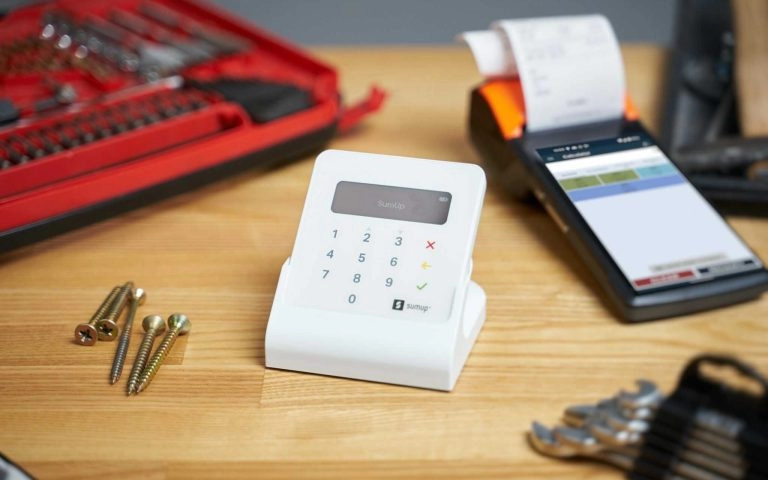
¿Te preguntas cómo configurar una caja registradora ¿Para tu pequeña empresa o tienda minorista? Conseguir que tu caja registradora funcione y esté en marcha sin problemas es fundamental para transacciones fluidas y clientes satisfechos.
Como un nombre de confianza en hardware POS, SDLPOS ha ayudado a miles de negocios a optimizar sus operaciones con sistemas confiables y fáciles de instalar. Basándonos en nuestra experiencia, hemos elaborado esta guía para acompañarte en cada paso del proceso.
En esta publicación, descubrirás un enfoque claro y paso a paso para configurar tu caja registradora, desde desempaquetar hasta procesar pagos, además de consejos para evitar errores comunes. Ya seas un propietario primerizo o estés actualizando tu sistema POS de Walmart, esta guía te cubre.
¡Comencemos!
Componentes de tu caja registradora y elementos esenciales para la configuración
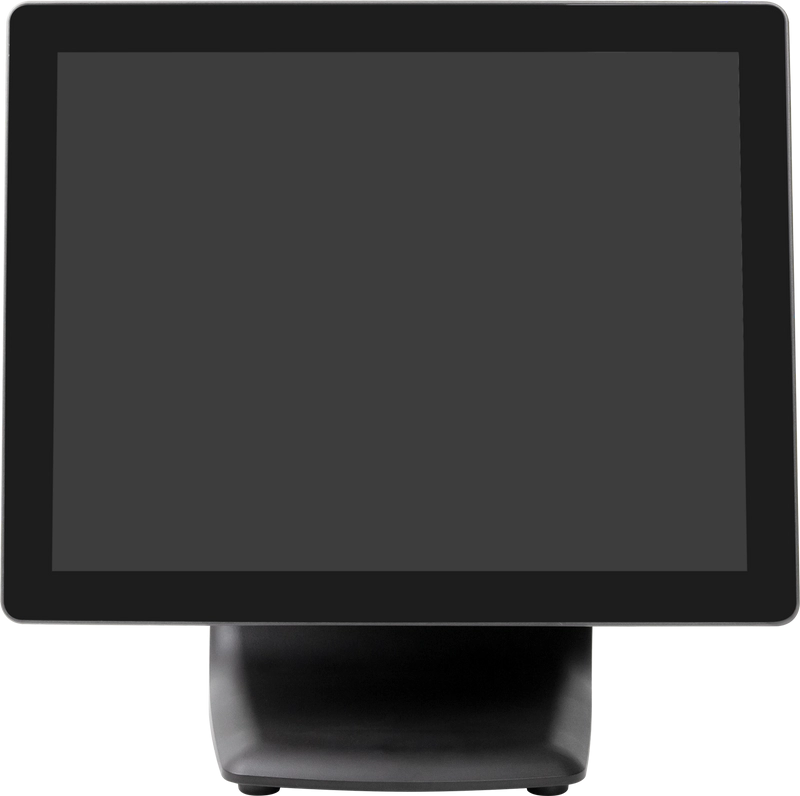
Cuando te preguntas cómo configurar una caja registradora, el primer paso es conocer las partes clave con las que trabajarás. Un sistema típico de caja registradora incluye varios componentes importantes:
- Cajón de la caja: El compartimento seguro para almacenar efectivo y monedas.
- Impresora de recibos: Imprime recibos de venta para los clientes y registros.
- Escáner de código de barras: Acelera la entrada de productos escaneando códigos de artículos.
- Pantalla: Muestra detalles de la transacción al cajero y, a veces, a los clientes.
Cada parte desempeña un papel crucial en operaciones comerciales fluidas y precisión en el momento del pago.
Importancia del hardware compatible
Usar hardware que funcione de manera integrada y sin problemas es fundamental. Los dispositivos incompatibles o desajustados pueden causar errores frecuentes o ralentizar tu proceso de cobro, reduciendo la eficiencia general.
Por eso, te recomiendo considerar Productos SDLPOS para tu configuración. Su línea de hardware ha sido diseñada para integrarse bien y simplificar la instalación para que puedas centrarte en gestionar tu negocio. Ya sea que busques una caja registradora con funciones electrónicas o una impresora de tickets confiable, los sistemas SDLPOS priorizan la compatibilidad y la calidad.
Precauciones básicas de seguridad e instalación
Antes de comenzar a montar tu caja registradora, ten en cuenta estos consejos de seguridad:
- Desconecta las fuentes de alimentación mientras conectas componentes para evitar descargas eléctricas.
- Revisa los cables y el hardware en busca de daños antes de usar para prevenir fallos o peligros en el hardware.
- Coloca tu caja registradora en una superficie estable para evitar caídas o daños durante su uso.
- Evita colocarla cerca de líquidos o alimentos para prevenir derrames que puedan dañar los componentes electrónicos.
Tomar precauciones básicas protegerá tu equipo y te proporcionará una configuración duradera.
Para entender mejor cómo funcionan las cajas registradoras y sus beneficios, consulta cómo funciona una caja registradora. Este recurso complementa tu proceso de configuración y destaca cómo hardware y software integrados trabajan en conjunto.
En los próximos pasos, nos pondremos manos a la obra con la instalación física y la configuración del software para preparar tu caja registradora para el negocio.
Paso 1 Instalación física y montaje de tu caja registradora
Desembalaje y revisión de todos los componentes
Cuando recibas tu caja registradora, comienza desempaquetando con cuidado. Asegúrate de tener todas las piezas listadas en el manual: el cajón de efectivo, impresora de recibos, escáner de código de barras, pantalla y fuente de alimentación. Verifica si hay daños visibles y confirma que no falta nada antes de continuar. Esto es crucial para evitar retrasos durante la configuración.
Conectar cajón de efectivo, impresora de recibos, escáner de código de barras y fuente de alimentación
A continuación, es momento de conectar todo. Esto es lo que debes hacer:
- Fija el cajón de efectivo a la impresora de recibos o a la caja registradora usando el cable proporcionado. Esto permite que el cajón se abra automáticamente cuando finaliza una transacción.
- Conecta la impresora de recibos a través de USB o Ethernet — lo que soporte tu modelo.
- Enchufa el escáner de código de barras, generalmente vía USB, asegurándote de que sea reconocido por tu sistema.
- Finalmente, conecta la fuente de alimentación para cada dispositivo. Asegúrate de que todos los cables estén seguros y colocados de forma segura para evitar riesgos de tropiezos.
Siempre consulta el manual de instrucciones de tu hardware. Si usas productos de SDLPOS, sus guías de configuración son sencillas y con pasos claros para la conexión.
Colocación de la caja registradora para operaciones comerciales
La ubicación importa. Elige un lugar que sea:
- Fácilmente accesible para el personal pero alejado de tráfico peatonal intenso para evitar desconexiones accidentales.
- Cerca de un enchufe de corriente y conexión de red.
- Posicionado de modo que el cliente pueda ver claramente la pantalla y el recibo área.
- Sobre una superficie estable y plana para un funcionamiento suave del cajón de dinero y del escáner.
Tomarse tiempo aquí garantiza un funcionamiento diario sin problemas y mantiene su configuración funcionando más tiempo sin esfuerzo del hardware.
Siguiendo estos pasos, la instalación de su caja registradora será sólida, brindándole una configuración confiable para comenzar a configurar su software POS y métodos de pago.
Paso 2 Instalación del software y configuración inicial para la configuración de la caja registradora

Después de haber conectado el hardware de su caja registradora, el siguiente gran paso es instalar y configurar su software POS. Ya sea que esté trabajando con un software propietario que vino con su sistema o con una solución POS de terceros, este proceso es clave para que su caja registradora esté completamente operativa.
Instalación del software POS
- Elija el software adecuado: La mayoría de las cajas registradoras funcionan mejor con software específico, así que comience instalando el que sea compatible con su hardware. Las opciones populares incluyen productos SDLPOS, conocidos por su integración perfecta con cajones de dinero, impresoras de recibos y escáneres de código de barras.
- Siga las indicaciones de instalación: Ejecute el instalador y siga todos los pasos. Esto incluye aceptar los acuerdos de licencia y elegir los directorios de instalación.
- Mantenga su software actualizado: Instale siempre la última versión para garantizar mejoras en seguridad y rendimiento.
Conectando hardware al software
Una vez instalado el software, necesita reconocer el hardware conectado:
- Vincula tu caja registradora para que se abra automáticamente durante el pago.
- Configura tu impresora de tickets dentro de los ajustes del software. Asegúrate de que el diseño coincida con el tamaño de tu papel.
- Configura el escáner de códigos de barras para un escaneo fluido. Prueba el reconocimiento de códigos de barras para evitar retrasos en las transacciones.
Configurando lo básico de la caja registradora
Este paso consiste en adaptar el sistema a las especificidades de tu negocio:
- Ingresa la información de la tienda: Añade el nombre de tu negocio, dirección y datos de contacto para recibos y registros.
- Configura las preferencias de moneda: Elige Euros (€) u otra moneda local para asegurar que los precios y recibos se muestren correctamente.
- Define las tasas de impuestos: Ingresa las tasas de impuestos estatales y locales. Esto mantiene tu impuesto sobre ventas preciso y en cumplimiento con las regulaciones.
- Personaliza los detalles del recibo: Añade políticas de devolución o mensajes de la tienda según sea necesario para la claridad del cliente.
Siguiendo cuidadosamente estos pasos en la instalación y configuración de tu software de caja registradora, crearás un sistema eficiente adaptado a las necesidades diarias de tu negocio. Para obtener consejos más detallados sobre cómo usar tu caja registradora de manera efectiva, consulta cómo usar la caja registradora.
Paso 3 Configuración de Métodos de Pago para su Caja Registradora

Configurar métodos de pago es una parte fundamental de su guía de configuración de caja registradora. Para atender a sus clientes sin problemas, necesita configurar cómo su caja maneja los pagos en efectivo, con tarjeta de crédito y débito.
Configurar Pagos en Efectivo
Comience asegurándose de que su cajón de efectivo esté correctamente conectado y configurado para abrirse cuando se complete una transacción en efectivo. Por lo general, puede habilitar esto en la configuración de su software POS. Asegúrese de que el cajón de efectivo se abra sin problemas para evitar retrasos durante las horas punta.
Configurar Procesamiento de Tarjetas de Crédito y Débito
La mayoría de los negocios dependen en gran medida de los pagos con tarjeta. Para gestionar esto:
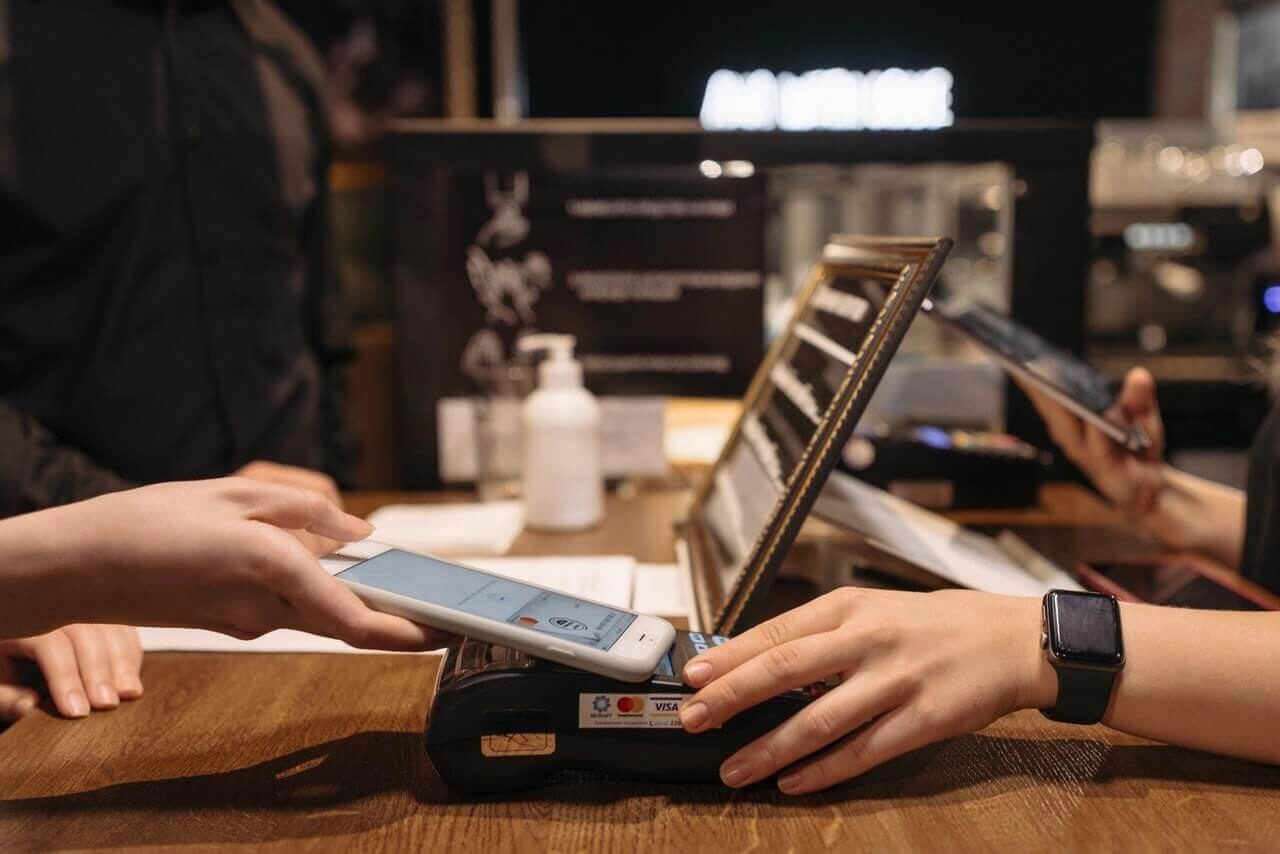
- Integre su caja registradora con terminales de pago populares como Square, Clover o PayPal Here. Estos terminales se conectan fácilmente a su sistema POS, permitiendo un procesamiento de tarjetas rápido y seguro.
- Por lo general, necesitará instalar controladores o software para vincular su terminal de pago con el software de su caja registradora. Verifique la compatibilidad para evitar problemas.
- Configurar ajustes para transacciones con contacto, chip y deslizamiento según las capacidades de su terminal.
Conectarse con Pasarelas de Pago
Si utiliza opciones de pago en línea o móvil, configurar la integración con pasarelas de pago (como Stripe, Authorize.Net o PayPal) es importante. Esto le permite procesar pagos con tarjeta sin problemas y mantener sincronizados todos los datos de ventas.
- Introduce las credenciales de tu cuenta de comerciante en tu software de punto de venta (POS).
- Prueba la conexión para confirmar que las transacciones fluyen de forma segura.
Prueba la precisión de las transacciones de pago
Antes de ponerte en marcha:
- Realiza varias transacciones de prueba utilizando efectivo, tarjetas de crédito y débito.
- Confirma que el cajón de efectivo se abre correctamente.
- Asegúrate de que los recibos se impriman con detalles de pago precisos.
- Verifica que los registros de transacciones dentro del software coincidan con tus ventas de prueba.
Las pruebas te ayudan a detectar problemas de forma temprana, minimizando las interrupciones durante el horario comercial real.
Configurar los métodos de pago correctamente garantiza un pago rápido y fiable—una de las claves para mantener contentos a los clientes y que tu negocio funcione sin problemas. Si tienes problemas, los productos SDLPOS a menudo vienen con un sólido soporte para guiarte a través de la configuración y la resolución de problemas de pago.
Paso 4: Personalización de la configuración de tu caja registradora para un funcionamiento sin problemas

Una vez que el hardware de tu caja registradora y la configuración básica del software estén listos, el siguiente paso crucial es personalizar la configuración para que coincida con las necesidades de tu negocio. Esto garantiza ventas diarias sin problemas, un seguimiento preciso del inventario y un control adecuado del personal. Aquí tienes un desglose sencillo para sacar el máximo partido a tu sistema.
Crea categorías de productos y añade inventario
Comienza organizando tus productos en categorías. claras. Esto hace que el pago sea más rápido y mantiene el inventario manejable.
- Agrupa artículos similares, como bebidas, ropa o electrónica.
- Agrega el nombre, SKU, precio y estado del impuesto de cada producto.
- Actualiza las cantidades para que tu caja registre tu inventario real.
- Utiliza asignaciones de códigos de barras si tu caja registradora soporta un escáner de código de barras para escaneo rápido.
Hacer esto de antemano ayuda a evitar errores y acelera las transacciones durante las horas punta.
Configura permisos de usuario y contraseñas del personal
La seguridad y la responsabilidad son clave, especialmente si varios empleados manejan ventas.
- Asigna a cada empleado un inicio de sesión o contraseña únicos.
- Establece permisos según el rol: por ejemplo, los cajeros pueden procesar ventas pero no acceder a informes o reembolsos.
- Limita el acceso a anulaciones, descuentos y información financiera sensible.
- Esto mantiene seguros tus datos de ventas y ayuda a rastrear el rendimiento individual.
Configura plantillas de recibos y opciones de impresión
Tu recibo forma parte de tu marca y experiencia del cliente. Personalizar su diseño e información es esencial.
- Agrega tu nombre comercial, logotipo y datos de contacto en los recibos.
- Incluye información útil como políticas de devolución, puntos de fidelidad o mensajes promocionales.
- Elige qué datos de ventas imprimir—artículos, impuestos, descuentos, método de pago.
- Configura el tamaño del papel y las preferencias de impresión según las capacidades de tu impresora de tickets.
Una configuración adecuada del recibo garantiza una comunicación clara y profesional con los clientes y facilita devoluciones o cambios.
Al tomarte el tiempo para personalizar la configuración de tu caja registradora, mejoras la precisión, seguridad y satisfacción del cliente. Este paso establece una base sólida para tu sistema POS minorista y ayuda a que tu negocio funcione eficientemente cada día.
Paso 5 Pruebas y resolución de problemas comunes con tu caja registradora
Una vez que hayas configurado tu caja registradora, realizar transacciones de prueba es esencial. Esto ayuda a confirmar que todo, desde escaneo de códigos de barras hasta procesamiento de pagos, funciona sin problemas antes de que los clientes comiencen a pagar. Aquí tienes una lista rápida para guiar tu fase de pruebas:
- Realiza algunas ventas de muestra usando efectivo, tarjeta de crédito y débito.
- Imprime recibos para verificar si la impresora de tickets está clara y bien alineada.
- Abre y cierra la caja para asegurarte de que responde correctamente cuando se completa una transacción.
- Verifica que los impuestos y descuentos se apliquen como se espera.
Resolución de problemas de atascos en la impresora y fallos en la caja
Los atascos en la impresora y las fallas en la caja son problemas comunes en la configuración del hardware de la caja registradora. Aquí tienes cómo abordar estos problemas:
Atascos en la impresora
- Apaga y desconecta tu impresora de tickets antes de limpiar los atascos.
- Retira suavemente el papel atrapado sin rasgarlo.
- Verifica que estás usando el tipo y tamaño correcto de papel térmico recomendado por SDLPOS.
- Limpia regularmente la cabeza de la impresora para evitar acumulaciones.
La caja no se abre
- Verifica doblemente la conexión del cajón con la caja registradora o el PC.
- Asegúrate de que el cable del cajón esté conectado de forma segura y no esté dañado.
- Prueba abrir el cajón manualmente si es posible—algunos modelos tienen una override con llave.
- Confirma que la configuración de tu software POS active la apertura del cajón después del pago.
Manejo de errores de comunicación y problemas de conexión del hardware
Los fallos de conectividad entre los periféricos de tu caja registradora—lector de códigos de barras, impresora de tickets, cajón— y tu software POS pueden ocurrir. Para minimizar el tiempo de inactividad:
- Reinicia tu caja registradora y los dispositivos conectados.
- Inspecciona todos los cables para conexiones seguras y ajustadas. Reemplaza cualquier cable desgastado o dañado.
- Actualiza tu software POS y controladores a las versiones más recientes.
- Asegúrate de que tu red (si aplica) sea estable y no bloquee la comunicación de los dispositivos.
Cómo puede ayudar el soporte técnico de SDLPOS
SDLPOS no es solo un proveedor de hardware; son tu socio tecnológico para mantener tu POS funcionando a la perfección. Si los problemas persisten más allá de la solución básica de problemas:
- Contacta con el soporte técnico de SDLPOS para obtener asesoramiento experto adaptado a su hardware.
- Utiliza sus recursos en línea, preguntas frecuentes y manuales de usuario para orientación.
- Aprovecha los servicios de garantía o piezas de repuesto si es necesario.
- El soporte de SDLPOS comprende las necesidades de las pequeñas empresas en España y busca resolver los problemas rápidamente para evitar pérdidas en ventas.
Al mantenerte proactivo con pruebas y abordar los problemas temprano, mantendrás tu servicio de caja registradora fiable y a tus clientes satisfechos.
Consejos para mantener tu caja registradora en buen estado y prolongar su vida útil
Mantener tu caja registradora funcionando sin problemas a largo plazo se traduce en menos dolores de cabeza y menos tiempo de inactividad. Sigue estos consejos prácticos enfocados en mantenimiento de caja registradora, actualizaciones de software y revisiones de hardware para prolongar la vida útil de su sistema de punto de venta.
Limpieza y mantenimiento regular
- Limpiar la parte exterior a diario con un paño suave y húmedo para prevenir la acumulación de polvo y suciedad.
- Limpiar regularmente la caja registradora—eliminar residuos que puedan causar atascos o que la bandeja se quede atascada.
- Mantener libre de polvo de papel y manchas de tinta la impresora de recibos siguiendo las instrucciones de limpieza del fabricante.
- Evitar el uso de productos químicos agresivos que puedan dañar los botones o pantallas.
- Si utiliza un escáner de código de barras, limpiar cuidadosamente la ventana de escaneo para mantener lecturas precisas.
Actualizaciones de software y copias de seguridad
- Instalar las actualizaciones de software de manera puntual—estas suelen incluir parches de seguridad y mejoras en las funciones.
- Programa hacer copias de seguridad regulares de sus datos de ventas y configuraciones de la caja para evitar pérdida de datos por fallos de energía o problemas del sistema.
- Mantener su software de punto de venta compatible con su hardware revisando cuidadosamente las notas de actualización.
- Programar recordatorios para actualizar fuera del horario laboral para minimizar interrupciones.
Revisiones rutinarias del hardware
- Prueba tu mecanismo de apertura de la caja registradora de manera rutinaria para un funcionamiento fluido.
- Inspecciona cables y conexiones en busca de desgaste o enchufes sueltos—reemplaza o asegura según sea necesario.
- Realiza recibos de prueba a través de la impresora para detectar atascos de papel o tinta desvanecida temprano.
- Confirma que dispositivos periféricos como escáneres de código de barras y pantallas estén comunicándose correctamente con tu sistema POS.
- Consulta el manual de tu producto o soporte SDLPOS para solucionar rápidamente problemas clave de hardware.
Siguiendo estos consejos esenciales de configuración y mantenimiento de la caja registradora, proteges la inversión de tu negocio y mantienes tu proceso de cobro eficiente y confiable. Para asesoramiento detallado sobre configuración de hardware o problemas de software, visita Los sistemas de caja registradora SDLPOS para soporte experto y recursos.


