







Comment résoudre les problèmes courants des caisses enregistreuses étape par étape


Rencontrez-vous des problèmes avec votre caisse enregistreuse au moment où vous en avez le plus besoin ? Que vous soyez propriétaire d'une petite entreprise, gestionnaire de commerce ou caissier en première ligne, savoir comment résoudre les problèmes courants de caisse enregistreuse peut vous faire gagner un temps et de l'argent précieux. Une caisse enregistreuse fiable n’est pas seulement un équipement — c’est le cœur de votre processus de vente.
Dans ce guide, vous trouverez des solutions pratiques, étape par étape, pour résoudre des problèmes fréquents tels que les coupures d’alimentation, les bugs d’affichage, les bourrages d’imprimante et les erreurs logicielles. Nous décomposerons les solutions pour que vous puissiez diagnostiquer et résoudre rapidement les problèmes sans faire appel à des réparations coûteuses. De plus, vous apprendrez quand il est temps de contacter des professionnels et comment maintenir votre caisse enregistreuse en bon état de fonctionnement.
Si vous souhaitez minimiser les temps d’arrêt et renforcer votre confiance dans votre matériel de point de vente, cette démarche guidée par SDLPOS est exactement ce qu’il vous faut. Commençons !
Les composants et fonctions de base de votre caisse enregistreuse
Comprendre vos caisse enregistreuse sont la première étape pour un dépannage efficace. Une caisse enregistreuse est plus qu’une simple machine pour gérer les transactions de vente — c’est une pièce essentielle de votre matériel du système POS qui garantit le bon fonctionnement de votre activité. Connaître ses composants et ses fonctions de base vous aidera à identifier plus rapidement les problèmes potentiels et à appliquer les bonnes solutions.
Principaux composants d’une caisse enregistreuse
Alimentation électrique
L’alimentation électrique est le cœur de votre caisse enregistreuse, fournissant de l’électricité à tous les composants internes. Les problèmes ici provoquent souvent des coupures de courant ou des arrêts inattendus.
Écran d'affichage
Affiche les détails des transactions, les prix et les messages système. Un affichage défectueux peut perturber les ventes et créer de la confusion chez les clients.
Interface clavier ou écran tactile
Utilisé pour saisir les prix, sélectionner les produits et faire fonctionner les fonctions. Des défauts ici peuvent ralentir les transactions et entraîner des erreurs de saisie.
Imprimante de reçus
Indispensable pour imprimer les reçus clients et les enregistrements de transactions. Les problèmes courants incluent les bourrages de papier et les impressions effacées.
Tiroir-caisse
Stocke en toute sécurité l’argent liquide et les pièces de monnaie, et s’ouvre généralement automatiquement lors des transactions. Des problèmes mécaniques ou des erreurs logicielles peuvent empêcher l’ouverture du tiroir.
Processeur et mémoire internes
C’est le “ cerveau ” où sont traités les calculs et stockées les données de vente. Des bugs logiciels ou des défaillances matérielles dans cette section peuvent causer des erreurs opérationnelles.
Fonctions de base d’une caisse enregistreuse
Votre caisse enregistreuse est conçue pour :
- Traitez les transactions de vente rapidement et avec précision
- Calculez automatiquement les totaux, les taxes et la monnaie
- Imprimez efficacement les reçus des clients
- Gérez la trésorerie en toute sécurité grâce à un accès contrôlé au tiroir-caisse
- Stockez les données de vente à des fins de rapports et de comptabilité
De nombreuses caisses enregistreuses modernes fonctionnent dans le cadre d'un système intégré système POS, combinant matériel et logiciel pour gérer de manière transparente l'inventaire, les données clients et les rapports. Cela augmente la complexité, mais améliore également la fonctionnalité.
En maîtrisant les composants de base et leur interaction, vous pouvez aborder le dépannage avec une compréhension plus claire. Par exemple, si votre l'écran de la caisse enregistreuse ne fonctionne pas, vous saurez s'il faut vérifier l'alimentation, les câbles ou l'écran lui-même.
Pour une introduction détaillée sur l'utilisation efficace des caisses enregistreuses, consultez notre guide sur comment utiliser une caisse enregistreuse dans une épicerie.
Connaître votre équipement de fond en comble vous prépare à diagnostiquer et à résoudre les erreurs courantes de caisse enregistreuse en toute confiance, assurant ainsi le bon fonctionnement de votre entreprise.
Problèmes courants de caisse enregistreuse et conseils de diagnostic rapide
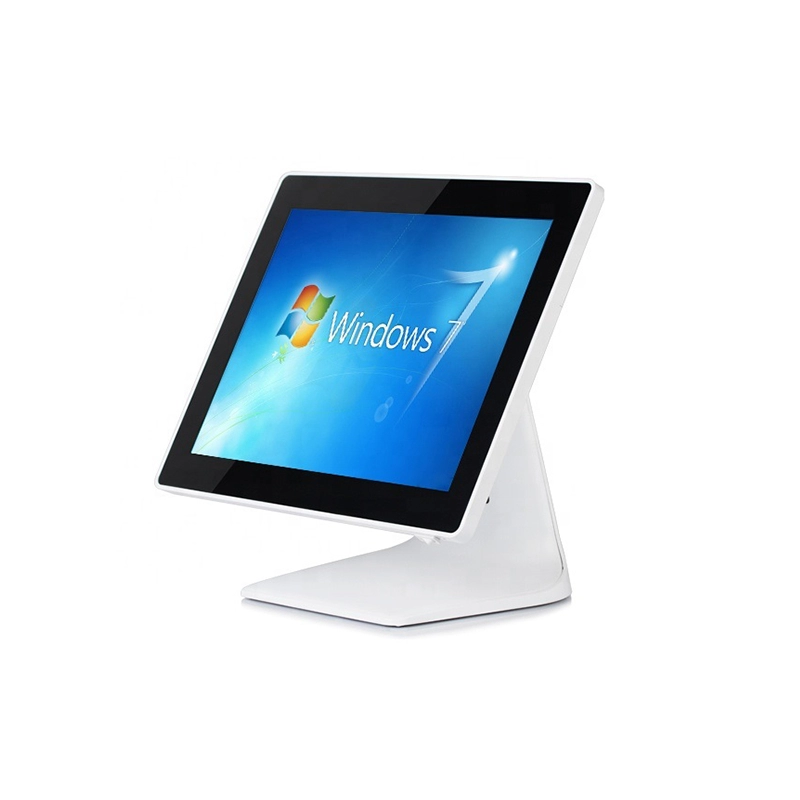
En ce qui concerne dépannage de caisse, la plupart des utilisateurs sont confrontés à une poignée de problèmes récurrents. Connaître ces problèmes courants et les moyens rapides de les diagnostiquer peut vous faire gagner du temps et assurer le bon fonctionnement de votre entreprise. Voici une ventilation des erreurs typiques de caisse enregistreuse et comment les repérer rapidement.
Problèmes d’alimentation
Si votre la caisse enregistreuse ne s'allume pas ou s'éteint de manière inattendue, il s'agit généralement d'un problème d'alimentation. Tout d'abord, vérifiez si le câble d'alimentation est correctement branché à la fois sur la caisse et sur la prise. Recherchez les cordons endommagés ou les connexions lâches. Vérifiez également si la prise elle-même fonctionne en testant avec un autre appareil. Parfois, un fusible grillé ou un déclenchement de votre disjoncteur peut également en être la cause. Une réinitialisation rapide de la multiprise ou du disjoncteur pourrait résoudre le problème.
Affichage ne fonctionnant pas
Un écran de caisse enregistreuse est un autre mal de tête courant. Diagnostiquez cela en vous assurant que les câbles d'affichage et les connecteurs sont bien fixés. Si votre modèle possède un écran d'affichage séparé, recherchez des câbles desserrés ou usés. Parfois, ajuster la luminosité ou réinitialiser le registre peut le faire revenir à la vie. Si vous voyez des codes d'erreur, notez-les — ils peuvent aider à identifier des défauts matériels ou logiciels spécifiques.
Problèmes d'imprimante de tickets
Les problèmes d'imprimante de tickets sont fréquents dans les magasins occupés. Si vous remarquez une absence d'impression ou une mauvaise qualité d'impression, commencez par vérifier le rouleau de papier — est-il chargé correctement, y a-t-il assez de papier ? Recherchez des bourrages papier et éliminez-les soigneusement sans déchirer le rouleau. Vérifiez également que les paramètres de l'imprimante dans votre logiciel de caisse sont correctement configurés. Des têtes d'impression sales ou des niveaux d'encre faibles (pour les imprimantes à encre) peuvent également causer des problèmes.
Le tiroir-caisse ne s'ouvre pas
Lorsque la tiroir-caisse ne s'ouvre pas, cela peut considérablement ralentir votre processus de paiement. Il peut s'agir d'un problème matériel ou de connexion. Assurez-vous que le tiroir est correctement connecté à la caisse et qu'il n'y a pas d'obstruction physique. Testez les mécanismes de déverrouillage manuel si disponibles. Si le logiciel de la caisse contrôle le tiroir, confirmez vos réglages et vérifiez s'il déclenche une commande d'ouverture correctement.
Pannes du clavier ou de l'écran tactile
Les touches ou écrans tactiles non réactifs peuvent être frustrants. Pour les claviers, vérifiez si des touches sont coincées ou sales, et nettoyez-les doucement si nécessaire. Pour les écrans tactiles, une simple réinitialisation peut corriger les problèmes de calibration. Confirmez qu'il n'y a pas de dommages physiques, et si possible, testez avec des dispositifs d'entrée externes pour isoler le problème.
Problèmes logiciels
Enfin, les problèmes logiciels tels que gel, messages d'erreur ou erreurs de transaction indiquent souvent un logiciel obsolète ou corrompu. Effectuer une mise à jour logicielle pour caisses peut corriger les bugs et améliorer les performances. Parfois, une réinitialisation complète ou un redémarrage résout de petits bugs, mais sauvegardez d'abord vos données si possible.
Conseils de diagnostic rapide
- Commencez toujours par l'alimentation et les connexions.
- Notez tout code d'erreur ou bruit inhabituel.
- Testez les composants matériels de base (imprimante, affichage, tiroir) un par un.
- Réinitialisez le système avant d'entreprendre des réparations complexes.
- Conservez une liste de contrôle des problèmes et des solutions pour référence future.
Comprendre ces erreurs courantes de caisse et savoir comment les évaluer rapidement vous prépare à résoudre les problèmes rapidement ou à décider quand faire appel à un professionnel.
Étapes détaillées de dépannage Problèmes d'alimentation de la caisse Solutions aux problèmes d'alimentation de la caisse
Les problèmes d'alimentation sont l'un des problèmes matériels de caisse les plus courants que vous pouvez rencontrer. Lorsque votre caisse ne s'allume pas ou s'éteint constamment, cela peut arrêter vos ventes et frustrer à la fois vous et vos clients. Voici un guide simple pour diagnostiquer et réparer ces problèmes d'alimentation.
Vérifiez la source d'alimentation et les connexions
- Vérifiez la prise: Branchez un autre appareil (comme un chargeur de téléphone) dans la même prise pour vous assurer qu’elle fonctionne.
- Inspectez les câbles d’alimentation: Recherchez tout dommage visible, effilochage ou fiche desserrée. Les câbles endommagés peuvent provoquer des coupures d’alimentation intermittentes.
- Assurez-vous que les connexions sont sécurisées: La fiche d’alimentation et l’entrée d’alimentation de la caisse enregistreuse doivent être fermement connectées.
Réinitialisez la caisse enregistreuse
- Éteignez l’appareil: Si votre caisse enregistreuse possède un interrupteur d’alimentation, éteignez-la.
- Débranchez de la prise: Déconnectez complètement la caisse enregistreuse.
- Attendez 30 secondes: Cela permet à toute énergie résiduelle de se dissiper.
- Rebranchez-la et allumez-la: Cette simple réinitialisation résout souvent de petits bugs logiciels affectant l’alimentation.
Vérifiez la batterie interne (si applicable)
- Certaines caisses enregistreuses disposent d’une batterie de secours interne pour maintenir les réglages. Si les problèmes d’alimentation persistent même lorsqu’elle est branchée :
- Consultez votre manuel pour vérifier si la batterie interne doit être remplacée.
- Une batterie de secours déchargée peut ne pas empêcher l'alimentation mais peut provoquer un comportement erratique.
Inspectez le fusible ou le disjoncteur
- De nombreuses caisses enregistreuses contiennent un fusible ou un disjoncteur à l'intérieur :
- Localisez le fusible (généralement près de l'entrée d'alimentation).
- S'il est grillé, remplacez-le par un fusible de la même capacité.
- Si votre appareil déclenche fréquemment les disjoncteurs, cela peut indiquer des problèmes électriques nécessitant une assistance professionnelle.
Évitez les surtensions et les coupures de courant
- Utilisez un parafoudre pour protéger votre caisse enregistreuse contre les pics de tension inattendus.
- Si votre région connaît des coupures de courant irrégulières, envisagez un alimentation sans interruption (ASI) pour un fonctionnement fluide.
Lorsque les problèmes d'alimentation persistent
- Si aucune de ces solutions ne fonctionne, le problème pourrait venir d'une défaillance matérielle interne.
- Contact support professionnel ou le fabricant de votre caisse enregistreuse pour des options de réparation ou de remplacement.
En suivant ces étapes, vous pouvez résoudre rapidement et efficacement la plupart des problèmes d'alimentation liés à la caisse enregistreuse, minimisant ainsi les temps d'arrêt pendant vos heures de pointe.
Étapes détaillées de dépannage pour les dysfonctionnements de l'affichage de la caisse enregistreuse
A l'affichage de la caisse enregistreuse ne fonctionne pas correctement peut ralentir votre processus de vente et embrouiller le personnel ainsi que les clients. Voici un guide simple pour diagnostiquer et réparer les problèmes courants d'affichage afin que vous puissiez reprendre rapidement vos activités.
Vérifier les connexions d'alimentation et les câbles
- Vérifier la source d'alimentation: Assurez-vous que l'écran est bien branché. Parfois, un câble d'alimentation desserré ou une prise défectueuse peut provoquer un scintillement ou un écran noir.
- Inspecter les câbles de connexion: Si votre écran se connecte séparément du corps principal de la caisse (via VGA, HDMI ou USB), vérifiez les câbles pour détecter des dommages ou des connexions desserrées.
- Essayer une autre prise: Parfois, une multiprise ou une prise peut être le problème, alors testez l'écran avec une autre source d'alimentation.
Redémarrer et réinitialiser l'écran
- Redémarrez la caisse: Un simple redémarrage permet souvent de résoudre de petits bugs affectant l'écran.
- Réinitialiser les paramètres de l'écran: Consultez votre manuel d'utilisation pour savoir comment réinitialiser les paramètres de l'écran. Cela peut résoudre des problèmes comme des images déformées ou des niveaux de luminosité incorrects.
- Utiliser l'option de réinitialisation d'usine si disponible, mais uniquement après avoir sauvegardé les données importantes.
Inspecter pour des dommages physiques et des problèmes d'écran
- Recherchez des fissures ou des dommages visibles sur l'écran.
- Si l'écran est sombre ou présente des pixels morts, il pourrait nécessiter une réparation professionnelle ou un remplacement.
- Nettoyez l'écran doucement avec un chiffon doux—parfois, la saleté et les traces affectent la sensibilité tactile ou la visibilité.
Tester les problèmes d'affichage liés au logiciel
- Mettre à jour le logiciel de votre caisse enregistreuse: Un logiciel obsolète peut causer des erreurs d'affichage.
- Vérifiez le paramètres du logiciel pour les problèmes de configuration d'affichage.
- Si les glitches d'affichage se produisent lors de l'exécution de fonctions spécifiques, il pourrait s'agir d'un bug logiciel nécessitant une mise à jour ou un correctif.
Évaluer les facteurs environnementaux externes
- Les lumières vives ou l'éblouissement peuvent parfois rendre l'affichage difficile à voir — ajustez votre configuration si nécessaire.
- Assurez-vous que l'écran ne surchauffe pas ou n'est pas placé près de sources de chaleur ; une chaleur excessive peut provoquer un dysfonctionnement.
Lorsque les problèmes d'affichage persistent
Si, après ces étapes, votre affichage de la caisse enregistreuse ne fonctionne toujours pas, it’s likely a hardware defect or system-level problem beyond basic troubleshooting. Time to call professional support or the manufacturer’s service center to prevent prolonged downtime.
En suivant ces conseils, vous diagnostiquerez rapidement la plupart des problèmes matériels du système de point de vente liés à l'affichage et maintiendrez vos ventes en douceur.
Étapes détaillées de dépannage Problèmes de l'imprimante de reçus
Les problèmes d'imprimante de reçus sont parmi les plus courants des problèmes de caisse qui peuvent perturber les ventes et retarder les clients. Pour résoudre les problèmes d'imprimante de caisse, vous devez identifier la cause exacte. Voici un guide de dépannage clair couvrant les suspects habituels et comment les résoudre rapidement.
Imprimante de reçus qui n'imprime pas ou imprime des reçus vierges
Vérifiez l'installation du rouleau de papier
Assurez-vous que le rouleau de papier est correctement installé, avec le papier qui sort par le bas, et non par le haut. Une mauvaise installation entraîne souvent des reçus vierges.
Inspectez le type de papier
Utilisez un papier thermique compatible recommandé par le fabricant. Un papier de mauvaise qualité ou incorrect peut faire que l'imprimante imprime faiblement ou pas du tout.
Nettoyez la tête d'impression
Avec le temps, la saleté et les résidus s'accumulent sur la tête d'impression. Utilisez un stylo de nettoyage ou de l'alcool isopropylique avec un chiffon doux pour la nettoyer délicatement.
Vérifier les connexions de l'imprimante
Assurez-vous que l'imprimante est correctement connectée à la caisse ou au système POS. Des câbles desserrés ou des ports USB/série défectueux en sont souvent la cause.
Bourrage de papier ou problèmes d'alimentation des reçus
Retirer le papier bloqué avec précaution
Ouvrez le couvercle de l'imprimante et retirez doucement tout papier coincé ou bloqué. Évitez de le déchirer pour prévenir les résidus à l'intérieur du mécanisme.
Vérifier le chemin du papier pour détecter les obstructions
Éliminez tout morceau de papier déchiré ou débris dans le trajet du papier. Parfois, des vieux bonds ou reçus bloquent l'alimentation fluide.
Vérifier l'épaisseur et la taille du papier
Utilisez le jauge de papier ou les recommandations du fabricant pour confirmer que l'épaisseur et la largeur du papier sont correctes. Une taille incorrecte peut provoquer des bourrages.
Qualité d'impression médiocre et taches
Ajuster les paramètres de l'imprimante
Accédez au menu des paramètres de l'imprimante pour ajuster la densité ou la vitesse d'impression. Augmenter la densité peut améliorer l'impression fanée.
Remplacer la tête d'impression usée
Après une utilisation intensive, la tête d'impression peut s'user. Si le nettoyage ne suffit pas, consultez le manuel pour les étapes de remplacement ou faites appel à un professionnel.
Éviter la chaleur ou l'humidité excessives
Conservez l'imprimante dans un endroit frais et sec. Une chaleur ou une humidité excessives peuvent dégrader le papier thermique et la qualité d'impression.
Erreurs et alertes de l'imprimante de reçus
Réinitialiser l'imprimante
De nombreuses caisses permettent de réinitialiser l'imprimante via les options du menu ou en redémarrant l'appareil. Cela peut effacer les erreurs logicielles temporaires affectant l'imprimante.
Vérifier le capteur de rouleau de papier
Assurez-vous que le capteur de rouleau de papier n’est pas bloqué ou sale. Les problèmes de capteur entraînent souvent de fausses alertes de “ pas de papier ”.
Mettre à jour le micrologiciel ou le logiciel de l’imprimante
Un logiciel obsolète peut entraîner des conflits de communication entre la caisse enregistreuse et l’imprimante. Effectuez des mises à jour logicielles pour maintenir la compatibilité.
Pour des informations plus détaillées sur matériel de caisse enregistreuse et sur le fonctionnement des composants tels que l’imprimante de reçus, consultez Les bases du matériel de caisse enregistreuse pour le commerce de détail. Ce guide vous aide à mieux comprendre votre système et à résoudre les problèmes plus efficacement.
En suivant ces étapes, vous devriez être en mesure de résoudre rapidement les problèmes d’imprimante de caisse enregistreuse, en minimisant les temps d’arrêt et en assurant le bon fonctionnement de votre caisse.
Étapes de dépannage détaillées pour les problèmes de tiroir-caisse
Les problèmes de tiroir-caisse sont un obstacle courant lors de l’utilisation d’une caisse enregistreuse, en particulier dans les environnements de vente au détail achalandés. Savoir comment résoudre les problèmes de tiroir-caisse de caisse enregistreuse rapidement peut vous éviter des retards frustrants à la caisse. Voici une ventilation des problèmes typiques de tiroir-caisse et comment les résoudre.
Le tiroir-caisse ne s'ouvre pas
Si votre tiroir-caisse ne s'ouvre pas, essayez ces étapes :
- Vérifiez la connexion : Assurez-vous que le câble du tiroir-caisse est bien branché à la fois dans la caisse enregistreuse et dans le tiroir.
- Libération manuelle : La plupart des tiroirs-caisses ont un levier ou une clé de déverrouillage manuel. Utilisez-le pour ouvrir le tiroir manuellement et vérifier s’il y a des blocages ou des pièces coincées.
- Alimentation et signal : Si votre caisse enregistreuse est éteinte ou si le matériel du système de point de vente a des problèmes d’alimentation, le tiroir-caisse ne s’ouvrira pas. Confirmez que la caisse enregistreuse est allumée et fonctionne.
- Commandes logicielles : Assurez-vous qu’aucun problème logiciel ne bloque le tiroir. Essayez de fermer correctement les transactions ou de réinitialiser la caisse enregistreuse.
Le tiroir-caisse s’ouvre de façon aléatoire ou ne se verrouille pas
Les ouvertures de tiroir inattendues peuvent être un signe de câblage défectueux ou de problèmes logiciels. Essayez ceci :
- Inspecter le câblage : Recherchez des câbles endommagés ou des connexions lâches entre la caisse enregistreuse et le tiroir.
- Mettez à jour le logiciel : Parfois, le problème vient du logiciel qui envoie des signaux incorrects. Vérifiez s'il y en a de disponibles mise à jour logicielle pour caisses.
- Réinitialiser le système : Effectuez une réinitialisation simple de la caisse enregistreuse en suivant les instructions de votre modèle pour effacer les erreurs mineures du logiciel.
Le tiroir-caisse se bloque ou reste coincé
Si le tiroir est difficile à ouvrir ou à fermer physiquement :
- Éliminez les obstructions : Retirez tout billet, pièce ou objet étranger bloquant le glissement du tiroir.
- Lubrifiez les rails : Utilisez une petite quantité de spray au silicone ou un lubrifiant similaire sur le mécanisme de glissement.
- Vérifiez l'alignement : Assurez-vous que le tiroir est correctement aligné avec la caisse et bien en place.
Le tiroir n'est pas reconnu par la caisse
Si votre caisse enregistreuse ne peut pas détecter le tiroir :
- Confirmez la compatibilité : Certains tiroirs-caisse nécessitent des modèles ou des versions de firmware spécifiques.
- Testez avec une autre caisse : Si disponible, connectez le tiroir à une autre caisse pour voir s'il s'agit d'un problème matériel.
- Remplacez les câbles : Des câbles défectueux peuvent empêcher la communication entre le tiroir-caisse et la caisse enregistreuse.
Conseils pour réussir le dépannage du tiroir-caisse
- Toujours éteignez votre caisse enregistreuse avant de déconnecter ou d'examiner le matériel.
- Gardez votre Tiroir-caisse propre et exempt de débris pour éviter les blocages.
- Sauvegardez régulièrement Vérifiez les connexions du tiroir-caisse et les paramètres logiciels pour détecter les problèmes rapidement.
Connaître ces étapes peut vous faire gagner un temps précieux, surtout pendant les heures de pointe. Lorsque les problèmes persistent, il peut être temps de contacter un support professionnel ou d’envisager un remplacement pour maintenir un fonctionnement fluide lors du passage en caisse.
Étapes détaillées de dépannage pour les défauts du clavier ou de l'écran tactile
Lorsque votre clavier ou écran tactile de la caisse enregistreuse ne répond pas, cela peut ralentir toute votre journée. Voici comment dépanner les problèmes courants et reprendre rapidement le travail.
Vérifiez les dommages physiques ou la saleté
- Inspectez le clavier ou l'écran tactile pour la saleté, la poussière ou les déversements. Ceux-ci peuvent bloquer la pression des touches ou les capteurs tactiles.
- Nettoyez délicatement avec un chiffon doux, sans peluche, légèrement humidifié avec de l’eau ou un nettoyant doux. Évitez les produits chimiques agressifs.
- Vérifiez s'il y a des fissures visibles ou des touches bloquées qui pourraient nécessiter une réparation.
Redémarrez votre caisse enregistreuse
- Parfois, la solution la plus simple est de réinitialiser votre caisse enregistreuse.
- Éteignez-la, attendez 30 secondes, puis rallumez-la. Cela peut effacer les petits bogues logiciels affectant le clavier ou l'écran tactile.
Vérifiez les paramètres du clavier ou de l'écran tactile
- Accédez au menu des paramètres de votre caisse enregistreuse.
- Assurez-vous que le clavier ou l'écran tactile est activé et correctement configuré.
- Certaines caisses permettent d'ajuster la sensibilité tactile—essayez de l'augmenter si les touches ne répondent pas.
Testez le matériel du clavier ou de l'écran tactile
- Utilisez les diagnostics intégrés si votre caisse enregistreuse en possède.
- Essayez de brancher un clavier externe si supporté, ou de passer à une souris pour naviguer et isoler le problème.
- Si votre écran tactile supporte les gestes, testez ces fonctions pour voir si l'écran répond du tout.
Mettre à jour le logiciel pour corriger les défauts du clavier ou de l'écran tactile
- Les bugs logiciels causent souvent des touches ou un écran non réactifs.
- Vérifiez un mise à jour logicielle pour caisses. Maintenir le logiciel de votre système de point de vente à jour peut corriger les bugs et améliorer la compatibilité matérielle.
Vérifiez les câbles de connexion et les ports
- Si votre clavier ou écran tactile est détachable, assurez-vous que tous les câbles sont bien connectés.
- Les câbles lâches ou endommagés sont une cause fréquente de problèmes matériels.
- Recherchez des broches pliées ou des fils effilochés et remplacez-les si nécessaire.
Lorsque aucune de ces solutions ne fonctionne
- Si votre clavier ou écran tactile de caisse enregistreuse reste sans réponse ou incohérent même après avoir essayé ces étapes, il est probable qu'il s'agisse d'un défaut matériel.
- Envisagez une réparation professionnelle ou un remplacement pour restaurer la pleine fonctionnalité de votre système de point de vente.
En suivant ces étapes simples, vous dépannerez efficacement les pannes les plus courantes du clavier ou de l'écran tactile, en minimisant les temps d'arrêt de votre entreprise.
Étapes détaillées de dépannage pour les bugs logiciels dans les caisses enregistreuses
Les bugs logiciels peuvent perturber la performance de votre caisse, provoquant des erreurs, des blocages ou des réponses lentes. Ces erreurs courantes de caisse proviennent généralement de logiciels obsolètes, de fichiers corrompus ou de conflits avec de nouvelles mises à jour. Voici comment dépanner et corriger efficacement les problèmes liés au logiciel.
Identifier les problèmes logiciels
- Symptômes à surveiller: gel du système, arrêts inattendus, messages d'erreur, fonctionnement lent ou incapacité à traiter les ventes.
- Vérifier les changements récents: Le problème a-t-il commencé après une mise à jour logicielle ou une nouvelle installation ? Cela peut aider à identifier la cause.
Étapes pour réparer les bugs logiciels
Redémarrez votre caisse enregistreuse
- Parfois, un simple redémarrage résout les bugs mineurs.
- Éteignez complètement, attendez 10 secondes, puis rallumez.
Mettre à jour le logiciel
- Vérifiez les dernières mises à jour logicielles spécifiques à votre modèle de caisse.
- Les logiciels mis à jour incluent souvent des corrections de bugs et une stabilité améliorée.
- Suivez les instructions du fabricant ou visitez leur site web pour les outils de mise à jour.
Vider le cache et les fichiers temporaires
- Une accumulation de cache peut ralentir la performance ou causer des erreurs.
- Si votre système le permet, videz le cache ou réinitialisez les fichiers temporaires pour actualiser l'environnement logiciel.
Exécutez le diagnostic ou les outils de dépannage intégrés
- De nombreuses caisses enregistreuses disposent d'un mode diagnostic pour la santé du logiciel.
- Exécutez tous les outils disponibles pour détecter et réparer les fichiers corrompus ou les conflits.
Réinitialiser aux paramètres d'usine (faites preuve de prudence)
- Si les problèmes persistent, envisagez une réinitialisation d'usine pour revenir à tous les paramètres logiciels.
- Sauvegardez d'abord les données importantes, car cela effacera les paramètres personnalisés et l'historique des transactions.
Vérifiez les conflits logiciels
- Si vous utilisez des systèmes de point de vente intégrés ou des applications tierces, assurez-vous de leur compatibilité.
- Désactivez ou désinstallez les ajouts récents pour tester s'ils causent le problème.
Lorsque les problèmes logiciels persistent
Si les bugs logiciels continuent après ces étapes, il pourrait s'agir d'un problème système plus profond ou lié au matériel, provoquant des défaillances du logiciel. Dans ce cas, contactez un support professionnel ou votre fournisseur de caisse pour une assistance supplémentaire.
Prévenir les problèmes logiciels
- Vérifiez et installez régulièrement les mises à jour logicielles.
- Évitez les arrêts brusques ; utilisez toujours les procédures d'arrêt appropriées.
- Limitez l'installation d'applications tierces non vérifiées sur le système de caisse.
En suivant ces étapes de dépannage, vous réduirez les temps d'arrêt causés par des bugs logiciels et maintiendrez votre caisse enregistreuse en bon état de fonctionnement pour les opérations quotidiennes.
Quand appeler le support professionnel pour le dépannage de la caisse enregistreuse
Savoir quand appeler le support professionnel peut faire gagner du temps et éviter des problèmes plus importants avec votre caisse enregistreuse. Bien que de nombreux problèmes courants puissent être résolus par des vérifications simples et des réparations rapides, certaines situations nécessitent l’aide d’un expert.
Signes indiquant que vous avez besoin d’une aide professionnelle
- Problèmes persistants d’alimentation électrique: Si vos problèmes d’alimentation de la caisse enregistreuse persistent après avoir vérifié les câbles, les prises et les alimentations, un diagnostic professionnel est nécessaire.
- Dysfonctionnements de l’affichage qui ne se résolvent pas: Lorsque l’écran reste noir ou affiche des messages d’erreur après des réinitialisations, il est temps de contacter le support.
- Problèmes d’imprimante de tickets qui se répètent: Les bourrages papier réguliers ou les problèmes de qualité d’impression qui ne s’améliorent pas après avoir vérifié les bases nécessitent souvent l’intervention d’un technicien.
- Tiroir-caisse qui ne s’ouvre pas mécaniquement: Si le tiroir reste bloqué après avoir vérifié qu’il n’y a pas d’obstructions mécaniques et après des tentatives de réinitialisation, les professionnels peuvent résoudre le problème en toute sécurité.
- Défauts du clavier ou de l’écran tactile affectant les transactions: Les dispositifs d’entrée non réactifs ou erratiques, surtout après des mises à jour logicielles ou des réinitialisations, nécessitent une intervention d’expert.
- Bugs logiciels qui ne se résolvent pas avec les mises à jour: Si le logiciel de votre caisse continue de se figer, de planter ou d’afficher des codes d’erreur après plusieurs réinitialisations ou mises à jour, il est préférable de contacter le support.
Pourquoi appeler des professionnels est important
- Prévenir les dommages: Les réparations en DIY peuvent parfois aggraver les problèmes internes.
- Gagner du temps: Les professionnels peuvent identifier rapidement les problèmes et disposent d'outils spécialisés.
- Éviter la perte de données: Cash registers handle sensitive sales data, so it’s important to preserve accurate records.
- Assurer la conformité: Des techniciens certifiés maintiennent votre système conforme aux normes et protocoles de sécurité actuels.
Comment se préparer avant d'appeler le support
- Documentez le problème: Notez les messages d'erreur, les symptômes et le moment où le problème a commencé.
- Notez tout changement récent: Mises à jour logicielles, nouveau matériel ou événements inhabituels peuvent aider au diagnostic.
- Essayez les réinitialisations de base: Redémarrez votre système ou réinitialisez la caisse enregistreuse en suivant les instructions du fabricant.
- Vérifiez les connexions: Assurez-vous que tous les câbles et alimentations sont bien connectés.
Contacter un support professionnel est souvent la façon la plus rapide de résoudre des problèmes complexes de caisse enregistreuse et de maintenir votre activité sans interruption. Savoir quand escalader peut prévenir des temps d'arrêt coûteux et protéger vos revenus.
Conseils de maintenance préventive pour une performance durable de la caisse enregistreuse
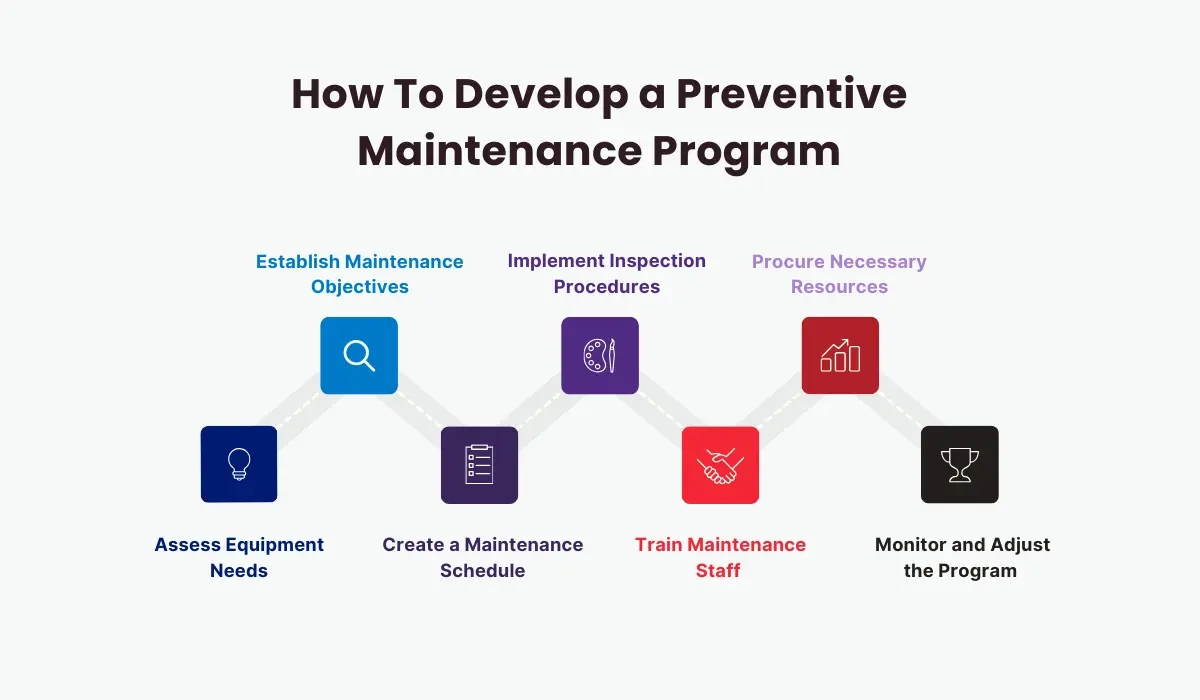
Maintenir votre caisse enregistreuse en bon état de fonctionnement signifie qu’un peu d’entretien régulier peut faire toute la différence. Pour éviter les problèmes courants et prolonger la durée de vie de votre matériel POS, suivez ces conseils pratiques :
Gardez-la propre et sans poussière
La poussière et la saleté peuvent causer des problèmes matériels tels que l'affichage de la caisse enregistreuse ne fonctionne pas ou des bourrages d’imprimante.
- Nettoyez régulièrement l’extérieur avec un chiffon doux
- Utilisez de l’air comprimé pour nettoyer le clavier et les zones de l’imprimante de tickets
- Évitez de manger ou de boire près de la caisse
Vérifiez souvent les connexions d'alimentation
Les problèmes d'alimentation sont une cause principale d'arrêts inattendus.
- Assurez-vous que le câble d'alimentation est bien branché
- Utilisez une multiprise pour prévenir les dommages causés par les surtensions
- Inspectez périodiquement les câbles d'alimentation pour détecter l'usure ou les frictions
Remplacez correctement le papier de l'imprimante de reçus
Utiliser le mauvais type ou charger mal le papier peut provoquer des bourrages et des impressions pâlies.
- Utilisez toujours le papier de reçu recommandé par le fabricant
- Chargez le papier correctement avec la bonne orientation
- Gardez des rouleaux de rechange à portée de main pour ne jamais être pris au dépourvu
Lubrifiez le mécanisme du tiroir-caisse
Un tiroir-caisse collant peut perturber la caisse et entraîner des erreurs.
- Nettoyez occasionnellement les rails de glissement
- Utilisez un lubrifiant léger recommandé pour les tiroirs-caisses afin de garantir un fonctionnement fluide
Mettez à jour le logiciel régulièrement
Les bugs logiciels ralentissent les opérations et causent des erreurs.
- Vérifiez les mises à jour du logiciel auprès de votre fournisseur de caisse
- Appliquez les mises à jour en dehors des heures d'ouverture pour ne pas interrompre l'activité
- Sauvegardez vos données avant de procéder aux mises à jour
Effectuer des réinitialisations système de routine
Parfois, une simple réinitialisation corrige plusieurs problèmes, comme des écrans figés ou des claviers qui ne répondent pas.
- Redémarrez régulièrement votre caisse enregistreuse (éteignez, attendez 10 secondes, rallumez)
- Suivez les instructions de réinitialisation du fabricant si elles sont disponibles
Former le personnel à une utilisation correcte
La prévention des erreurs causées par l'utilisateur commence par de bonnes habitudes.
- Enseigner comment charger correctement le papier et l'argent
- Montrer comment signaler les problèmes rapidement avant qu'ils ne se transforment en problèmes plus importants
En suivant ces étapes de maintenance préventive, vous réduisez le risque de erreurs courantes de caisse enregistreuse et tirez le meilleur parti de votre investissement. Un entretien régulier assurera la fiabilité de votre appareil et sa disponibilité lorsque vous en aurez le plus besoin.
FAQ sur le guide de dépannage des caisses enregistreuses
Voici les réponses à certaines des problèmes de caisse enregistreuse les plus courants auxquels les clients sont confrontés, ainsi que des solutions rapides pour assurer le bon fonctionnement de votre système.
Pourquoi ma caisse enregistreuse ne s'allume-t-elle pas ?
- Vérifiez la source d'alimentation : Assurez-vous que la caisse est correctement branchée et que la prise fonctionne.
- Inspectez les câbles d'alimentation : Recherchez les cordons endommagés ou les connexions desserrées.
- Réinitialiser le système : Essayez de débrancher pendant 30 secondes, puis rebranchez.
- Si cela ne fonctionne pas, il pourrait s'agir d'un problème matériel nécessitant une assistance professionnelle.
Que faire si la caisse enregistreuse ne s'ouvre pas
- Confirmer s'il est électronique ou manuel : Certaines caisses ne s'ouvrent que lors des transactions.
- Vérifier les blocages : Retirer tout objet coincé bloquant la caisse.
- Utiliser la clé de déverrouillage : De nombreuses caisses sont équipées d'une clé manuelle pour ouvrir la caisse.
- Si le problème persiste, tester la connexion entre la caisse et la caisse enregistreuse.
Comment réparer l'écran de la caisse enregistreuse qui ne fonctionne pas
- Ajuster la luminosité et le contraste : Parfois, les réglages de l'écran changent accidentellement.
- Redémarrer la caisse : L'arrêt et la remise sous tension peuvent réinitialiser les erreurs d'affichage.
- Inspecter le câble d'affichage : Les câbles internes desserrés peuvent causer des écrans noirs ou qui clignotent.
- Pour des problèmes persistants, le remplacement de l'écran ou une réparation professionnelle peut être nécessaire.
Comment résoudre les problèmes de bourrage de papier de l'imprimante de reçus
- Éteignez la caisse avant de déboucher les bourrages pour éviter les dommages.
- Ouvrez le couvercle de la imprimante : Retirez délicatement tout papier coincé.
- Utilisez le bon type et la bonne taille de papier : Un mauvais papier peut provoquer des bourrages.
- Nettoyez régulièrement la tête d'impression : L'accumulation de poussière affecte les performances.
- Rechargez toujours le papier correctement et fermez le couvercle hermétiquement.
Que faire si le clavier ou l'écran tactile de ma caisse enregistreuse ne répond pas
- Nettoyez la surface : La saleté ou les déversements peuvent bloquer la saisie.
- Redémarrer la caisse : Les bugs logiciels se résolvent souvent après un redémarrage.
- Vérifiez la calibration : L'écran tactile pourrait nécessiter une recalibration via les paramètres.
- Si les touches ou les boutons ne fonctionnent pas physiquement, envisagez des pièces de rechange.
Comment gérer les bugs logiciels dans la caisse enregistreuse
- Mettez à jour votre logiciel régulièrement : Les bugs sont souvent corrigés dans les mises à jour.
- Redémarrez pour effacer les erreurs temporaires : Redémarrez l'appareil avant d'essayer quelque chose de compliqué.
- Sauvegardez vos données avant des réparations majeures : Évitez la perte de données lors des réinitialisations ou des réinstallations.
- Si les problèmes logiciels persistent, contactez votre fournisseur pour obtenir du support ou réinstallez le logiciel.
Avoir des réponses rapides à ces erreurs courantes de caisse enregistreuse aide à minimiser les temps d'arrêt et maintient votre activité en marche sans problème. Lorsque vous ne pouvez pas le réparer vous-même, n'hésitez pas à contacter un support professionnel pour les problèmes matériels ou logiciels de votre système de point de vente.


