







Procédures de correction des échecs du pilote d'imprimante pour les imprimantes de reçus POS sous Windows 10 et 11

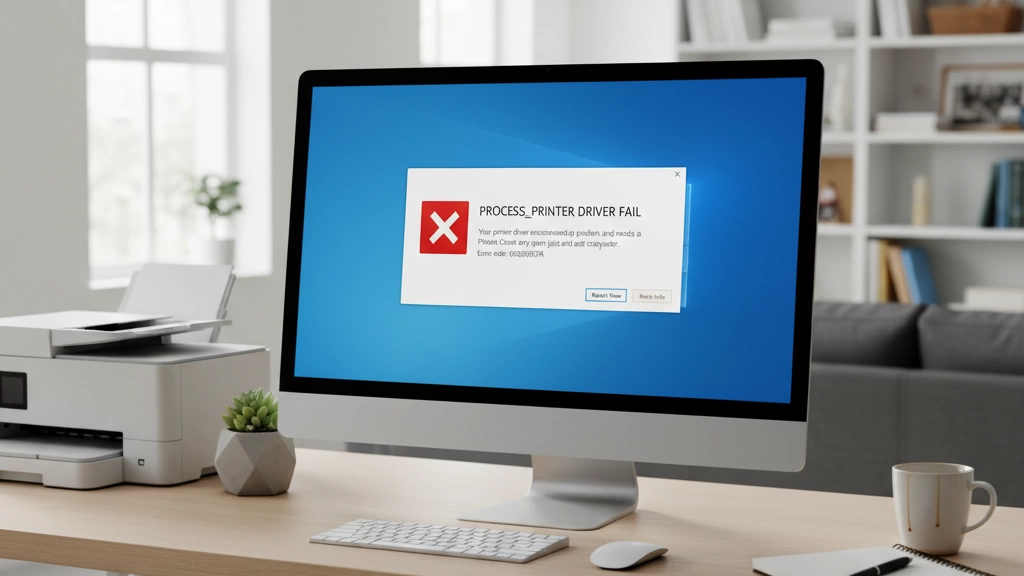
Ce que signifie vraiment “Échec du pilote d'imprimante de processus”
Lorsque vous voyez l'erreur “Échec du pilote d'imprimante de processus”, cela signifie essentiellement que Windows ne peut pas exécuter correctement le programme de traitement du pilote d'imprimante. Ce “processus” est un petit assistant qui communique entre votre ordinateur et le matériel de l'imprimante. S'il échoue, votre imprimante n'imprimera pas, laissant votre système de point de vente bloqué au moment où vous en avez le plus besoin.
Messages d'erreur exacts que vous pourriez voir
- “Le processus hôte du pilote d'imprimante pour les applications 32 bits a cessé de fonctionner.”
- “Échec de l'installation du pilote d'imprimante”
- “Échec du pilote du processeur d'impression”
- “Le service de spouleur d'impression s'est terminé de manière inattendue”
Ces messages apparaissent principalement lors de l'impression, de la configuration du pilote ou lorsque le service de spouleur plante.
Pourquoi cela arrive souvent avec les imprimantes thermiques POS de 80 mm
Les imprimantes thermiques de 80 mm, comme les modèles Epson TM-T82 ou Xprinter, sont extrêmement populaires dans le commerce de détail et la restauration pour les reçus. Elles dépendent de pilotes compacts, parfois non signés, personnalisés pour des systèmes POS spécifiques. Les fonctionnalités de sécurité de Windows et les conflits de pilotes les rendent susceptibles d'échouer dans leur traitement d'impression. De plus, ces imprimantes se connectent souvent via des ports virtuels USB (USB001), ce qui peut perturber Windows si la configuration n'est pas correcte.
Rassurance rapide : la plupart des cas sont faciles à réparer
Bonne nouvelle : 95% des erreurs “Échec du pilote d'imprimante de processus” peuvent être corrigées en moins de 15 minutes. Avec les bonnes étapes — comme vider le spouleur d'impression, réinstaller les pilotes appropriés ou ajuster les paramètres — vous pouvez reprendre rapidement vos activités. Restez avec moi, et nous verrons exactement comment faire cela.
Les causes les plus courantes de l'échec du pilote d'imprimante de processus en environnement de vente au détail
Lorsqu'il s'agit de l'erreur “Échec du pilote d'imprimante de processus” sur les systèmes POS, certaines causes apparaissent plus fréquemment que d'autres. Voici une liste classée des suspects habituels en contexte de commerce :
Signature des pilotes et protection de Windows 10/11
Les versions modernes de Windows bloquent par défaut les pilotes non signés ou mal signés. Cette fonctionnalité de sécurité empêche souvent l'installation ou le bon fonctionnement des pilotes d'imprimantes thermiques.
Crash ou corruption du service Spouleur d'impression
Le spouleur gère toutes les tâches d'impression. S'il plante ou devient corrompu, aucune des imprimantes ne peut communiquer correctement, entraînant des échecs du processus du pilote.
Pilotes conflictuels/anciens provenant d'imprimantes POS précédentes
Les pilotes résiduels d'autres imprimantes POS peuvent entrer en conflit avec de nouvelles installations, entraînant des erreurs et des dysfonctionnements de l'imprimante.
Paramètres de port incorrects ou manquants (problèmes de port virtuel USB001)
Les imprimantes de reçus POS dépendent souvent de ports USB virtuels comme USB001. Si ces ports sont manquants ou mal attribués, l'imprimante ne répondra pas.
Restrictions de permissions et de contrôle de compte utilisateur
Des droits utilisateur limités ou des paramètres stricts de contrôle de compte utilisateur (UAC) peuvent bloquer l'installation du pilote ou empêcher son lancement, provoquant l'erreur.
Fichiers DLL système corrompus ou manquants
Les DLL clés nécessaires aux processus d'impression peuvent être endommagées ou absentes, causant des échecs dans le processus hôte du pilote d'imprimante.
Antivirus/Windows Defender bloquant les pilotes non signés
Les logiciels de sécurité sur les machines de vente au détail peuvent parfois signaler les pilotes de thermiques non signés comme des menaces et bloquer leur fonctionnement.
Comprendre ces causes courantes vous aide à cibler rapidement la bonne solution sans perdre de temps à rechercher des problèmes aléatoires. Si vous souhaitez en savoir plus sur la configuration de matériel POS fiable, consultez comment les fournisseurs de caisses enregistreuses proposent des configurations personnalisées pour éviter ces problèmes avant qu'ils ne surviennent.
Corrections étape par étape (Testées sur de véritables machines clients SDLPOS)
Voici un aperçu rapide des corrections éprouvées qui ont fonctionné pour nos clients SDLPOS confrontés à l'erreur “Échec du processus du pilote d'imprimante”. Ces étapes sont simples et couvrent les problèmes les plus courants, du conflit de pilotes aux paramètres système.
Correction 1 : Vider le spouleur d'impression et redémarrer le service
Le spouleur d'impression est l'intermédiaire pour les travaux d'impression. Parfois, il plante ou se bloque, provoquant des erreurs de pilote. Vider la file d'attente du spouleur et redémarrer le service résout environ 60% des cas.
- Ouvrir Services (tapez “services.msc” dans Démarrer)
- Trouver Spouleur d'impression, clic droit, et sélectionner Arrêter
- Aller à C:WindowsSystem32spoolPRINTERS et supprimer tous les fichiers
- Redémarrer Spouleur d'impression service
Correction 2 : Supprimer complètement tous les anciens pilotes d'imprimante
Les pilotes restants des imprimantes POS précédemment installées causent souvent des conflits. La suppression de tous les anciens pilotes facilite une installation propre.
- Aller à Gestion de l'impression ou Gestionnaire de périphériques
- Désinstaller toutes les anciennes ou inutilisées imprimantes et pilotes
- Utilisez Propriétés du serveur d'impression > Pilotes pour supprimer complètement les anciennes versions
Correction 3 : Désactiver la signature des pilotes (Méthodes temporaire et permanente)
Windows 10/11 bloque par défaut les pilotes non signés, ce qui est courant avec de nombreux pilotes d'imprimantes thermiques POS. La désactivation temporaire de la signature des pilotes facilite l'installation du pilote sans problème.
- Pour désactiver temporairement : Redémarrer le PC en maintenant Shift, sélectionner Dépannage > Paramètres de démarrage > Désactiver l'enforcement de la signature du pilote
- Pour une désactivation permanente : utilisez l'invite de commandes en mode administrateur avec bcdedit /set nointegritychecks on
Correction 4 : Installer le pilote en mode compatibilité forcé
Certains pilotes POS sont conçus pour des versions plus anciennes de Windows. Exécuter l'installateur en mode compatibilité empêche souvent les erreurs d'installation.
- Clic droit sur l'installateur du pilote > Propriétés > Compatibilité
- Sélectionner Windows 7 ou 8 mode, cocher Exécuter en tant qu'administrateur, puis installer
Correction 5 : Créer manuellement le port correct (correction USB vers série)
Le port virtuel manquant ou incorrect (USB001) peut bloquer l'impression.
- Ouvrez Périphériques et imprimantes
- Clic droit sur l'imprimante > Propriétés de l'imprimante > Ports
- Ajouter un nouveau port correspondant à votre connexion (USB001, port COM, etc.)
Correction 6 : Exécuter le pilote officiel SDLPOS/Epson/Star en tant qu'administrateur
Clic droit sur votre installateur de pilote et choisissez Exécuter en tant qu'administrateur pour éviter les problèmes de permissions qui bloquent l'installation.
Correction 7 : Remplacer les fichiers DLL manquants (msxbse35.dll, etc.)
Certains pilotes dépendent de DLL système spécifiques. Les fichiers manquants comme msxbse35.dll provoquent des échecs.
- Télécharger les DLL manquantes depuis des sources fiables
- Les placer dans C :WindowsSystem32 ou dans le dossier du pilote
Correction 8 : Utiliser le pilote générique/seulement texte comme solution d'urgence
En cas d'échec, utiliser le pilote générique/seulement texte intégré peut faire fonctionner votre imprimante temporairement jusqu'à ce que le problème du pilote soit résolu.
Correction 9 : Outil de dépannage complet de l'impression Windows + Vérificateur de fichiers système
Windows dispose d'outils pour réparer les erreurs courantes d'impression et du système.
- Lancer le outil de dépannage d'impression Windows depuis Paramètres > Mise à jour et sécurité > Dépannage
- Ouvrir l'invite de commandes en tant qu'administrateur, exécuter : sfc /scannow pour réparer les fichiers système corrompus
Ces solutions ont été testées sur de véritables machines clients SDLPOS et couvrent la majorité des erreurs “ Échec du processus du pilote d'imprimante ” rencontrées en vente. Pour une expérience plus fluide, nous recommandons également de consulter nos conseils de déploiement du matériel POS pour éviter les problèmes dès le départ.
Corrections rapides spécifiques à la marque (clients SDLPOS)
Pour les clients SDLPOS, nous avons simplifié le processus de correction avec des solutions ciblées conçues spécifiquement pour les problèmes courants de pilotes d'imprimante rencontrés sur nos modèles supportés. Vous pouvez télécharger directement les derniers pilotes vérifiés SDLPOS pour 2026 depuis notre site officiel, garantissant compatibilité et stabilité améliorée.
Modèles les Plus Susceptibles de Déclencher l’Erreur “ Échec du Pilote d’Imprimante de Processus ”
- Imprimantes de Ticket de Caisse Thermiques SDLPOS (toutes les versions 80mm)
- Séries Epson TM-T82 et TM-T88
- Star Micronics TSP100 et TSP143
- Xprinter XP-Q200 et XP-Q260
Si vous travaillez avec l’un de ces modèles, il y a de fortes chances que les solutions rapides ci-dessous fonctionnent parfaitement.
Fichier Batch en Un Clic pour Réparation Instantanée
Pour gagner du temps, nous proposons un fichier batch en un clic qui automatise les étapes de réparation les plus courantes comme la suppression du spooler d’impression, la suppression des anciens pilotes, et le redémarrage du service de spooler. Il est testé et utilisé sur des centaines de systèmes supportés par SDLPOS, réduisant considérablement les temps d’arrêt.
Cet outil batch est une véritable bouée de sauvetage pour les boutiques qui doivent reprendre l’impression de reçus sans tracas. Assurez-vous de l’exécuter en tant qu’administrateur pour de meilleurs résultats.
Pour en savoir plus sur la configuration du matériel qui prévient ces problèmes de pilotes, consultez notre guide sur accessoires de caisse pour améliorer l'efficacité.
Prévention – Comment ne plus jamais voir cette erreur
Pour éviter la redoutable Échec du Pilote d’Imprimante de Processus erreur, il est préférable de prendre quelques précautions simples avant d’installer vos pilotes d’imprimante POS.
Désactivez toujours la verification de la signature des pilotes.
avant d’installer des imprimantes POS. Windows 10 et 11 bloquent souvent par défaut les pilotes non signés ou personnalisés, ce qui cause de nombreux échecs d’installation. Désactiver temporairement cette option évite les conflits et vous fait gagner du temps lors du dépannage. ordre d'installation recommandé du pilote pour les nouvelles boutiques :
- Désinstallez complètement tous les anciens pilotes d'imprimante ou pilotes conflictuels.
- Redémarrez votre PC.
- Désactivez la vérification de la signature du pilote.
- Installez les derniers pilotes vérifiés provenant de sources fiables comme SDLPOS.
- Redémarrez à nouveau et connectez votre imprimante.
Configurer meilleures exclusions antivirus dans les environnements de vente au détail. Les programmes antivirus et Windows Defender peuvent bloquer ou mettre en quarantaine les pilotes d'imprimante, en particulier ceux non signés. Ajoutez le dossier de votre pilote d'imprimante POS et les processus du spouleur d'impression à la liste blanche de votre antivirus pour éviter les interruptions.
Ces étapes simples vous aideront à éviter la plupart des problèmes courants de pilotes d'imprimante et à assurer le bon fonctionnement de votre caisse enregistreuse. Pour en savoir plus sur les imprimantes POS thermiques et la fiabilité du matériel, consultez notre guide détaillé sur la technologie thermique des imprimantes POS et la garantie de fonctionnement hors ligne dans les environnements de vente au détail.
Quand rien ne fonctionne – Que faire ensuite
Si vous avez essayé toutes les solutions ci-dessus et que vous faites toujours face à l'erreur ” Échec du processus du pilote d'imprimante ”, ne vous inquiétez pas — il existe une voie claire à suivre.
Comment collecter des journaux pour le support
La collecte de journaux aide notre équipe de support à diagnostiquer le problème plus rapidement. Voici ce qu'il faut faire :
- Ouvrez Observateur d'événements: Appuyez sur Win + R, tapez eventvwr.msc, puis appuyez sur Entrée.
- Aller à Journaux Windows > Système et Application sections. Recherchez les erreurs récentes liées au spouleur d'impression ou à votre pilote d'imprimante.
- Utilisez le Gestion de l'impression console (printmanagement.msc) pour exporter les détails de l'imprimante et du pilote.
- Collectez le journal d'installation du pilote si disponible ; souvent trouvé dans le dossier d'installation ou via les journaux de Windows Installer.
- Enregistrez ces journaux dans un dossier et préparez-les à partager lorsqu'ils seront demandés.
Ces informations aident à identifier la cause profonde au-delà des étapes de dépannage de base.
Assistance à distance gratuite de l'équipe SDLPOS
Vous êtes toujours bloqué ? L'équipe SDLPOS offre une assistance à distance gratuite pour vous guider dans des solutions avancées. Contactez-nous via notre page de support, et nous planifierons une session pour remettre votre imprimante en marche rapidement. Ce service inclut un accompagnement étape par étape et un dépannage expert adapté à votre configuration d'imprimante SDLPOS spécifique.
Obtenez une aide fiable et gagnez du temps en contactant nos spécialistes ici : Support et Assistance à Distance SDLPOS.
En collectant correctement les journaux et en utilisant notre assistance à distance, vous serez rarement bloqué longtemps. Nous sommes là pour assurer le bon fonctionnement de votre imprimante POS afin que vous puissiez vous concentrer sur la gestion de votre entreprise. Pour plus de conseils sur la configuration et la prévention, consultez notre guide complet pour les nouveaux propriétaires de magasins POS.
FAQ : Questions fréquentes sur l'échec du pilote d'imprimante de processus
| Question | Réponse |
|---|---|
| “ Le processus host du pilote d'imprimante pour applications 32 bits a cessé de fonctionner ” – réparé ? | Cela signifie généralement que le pilote d'imprimante plante sur des applications anciennes ou incompatibles. Redémarrer le spouleur d'impression ou réinstaller le pilote en mode compatibilité le résout souvent. |
| Différence : “ Échec de l'installation du pilote ” vs “ Échec du processus host du pilote d'imprimante ” ? | Échec de l'installation du pilote signifie que la configuration n'a jamais été terminée. Échec du processus host du pilote d'imprimante signifie que le pilote est installé mais échoue lors de l'impression ou du démarrage du processus d'impression. |
| Fonctionne sous Windows 11 24H2 mise à jour ? | Oui. Les derniers pilotes SDLPOS et des grandes marques prennent désormais en charge Windows 11 24H2, mais vous devrez peut-être désactiver la signature des pilotes lors de l'installation. |
| Puis-je utiliser l'imprimante sans le pilote d'origine ? | Généralement, oui — en utilisant le pilote Générique/Juste du texte comme solution d'urgence rapide. Mais pour toutes les fonctionnalités et la fiabilité, le pilote d'origine ou vérifié SDLPOS est préférable. |
| Pourquoi cela fonctionne-t-il sur un PC mais pas sur un autre ? | Les différences dans les mises à jour de Windows, les paramètres d'autorisation, les DLL manquantes ou les pilotes conflictuels anciens en sont la cause. Assurez toujours d'utiliser des versions de pilotes et des configurations Windows cohérentes. |
Besoin de plus d'aide ? Notre liste de contrôle matérielle pour POS vous guide à travers les bases de la configuration et les pièges courants à éviter.


